Your first live stream
One camera, a clock that stays on and a “Like us” button, live on Facebook. Shown on iPad; Android differences are noted under every step.
- LiveDeck on iPad, iPhone or Android
- A camera: built-in, a Satellite phone or NDI
- A Facebook Page (or YouTube / Twitch)
- About 5 minutes
 Step 1 of 8
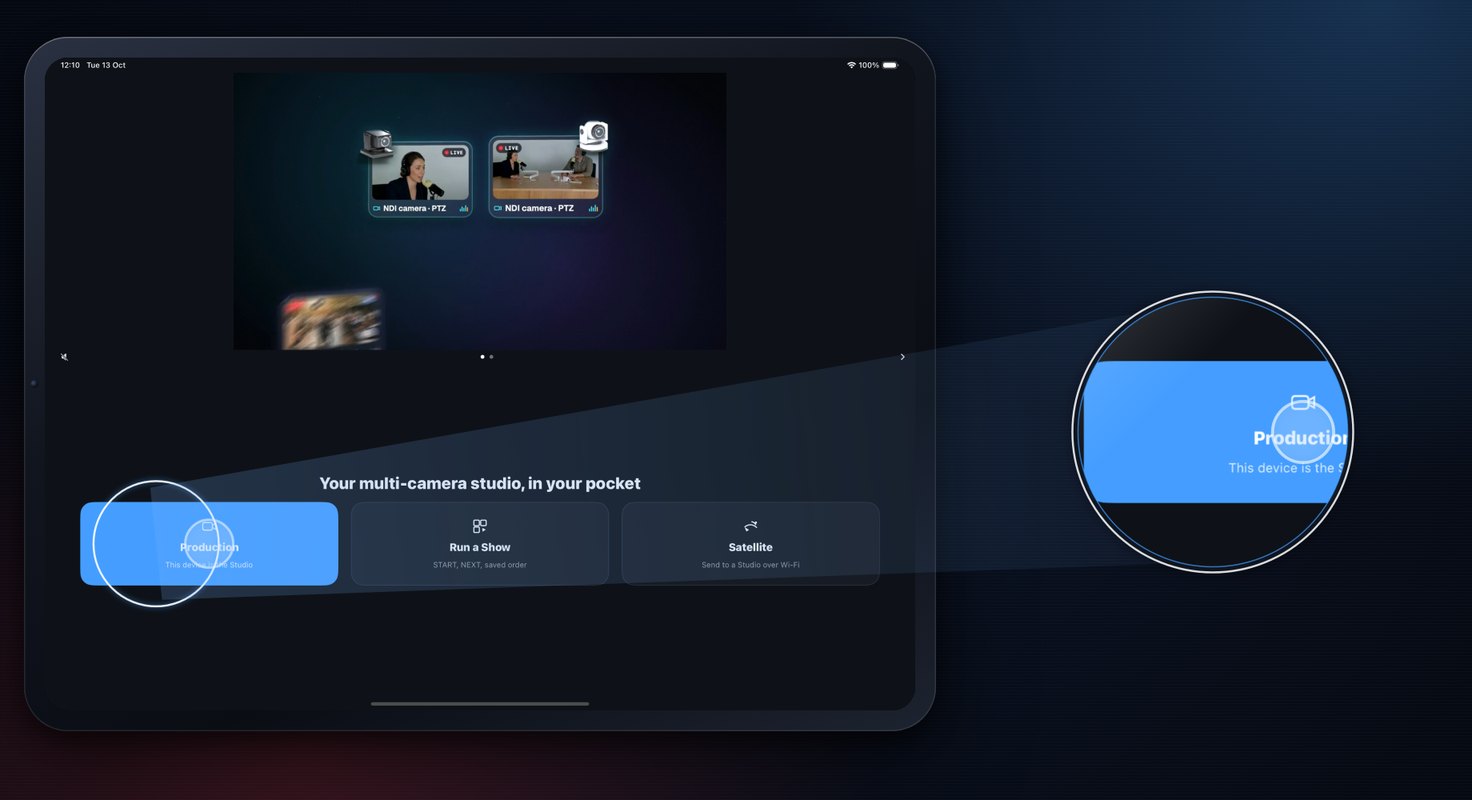
Open LiveDeck as the Studio
- Open LiveDeck. On “Welcome to LiveDeck” tap Continue and allow Camera and Microphone (Local Network and Photos are asked too).
- Pick Production — “This device is the Studio”.
- You land on an empty Studio: the Program monitor, an empty Layouts tray and the + button.
AndroidSame three tiles (Production · Run a Show · Satellite). Permissions are asked first, on one “Permissions needed” page.
 Step 2 of 8
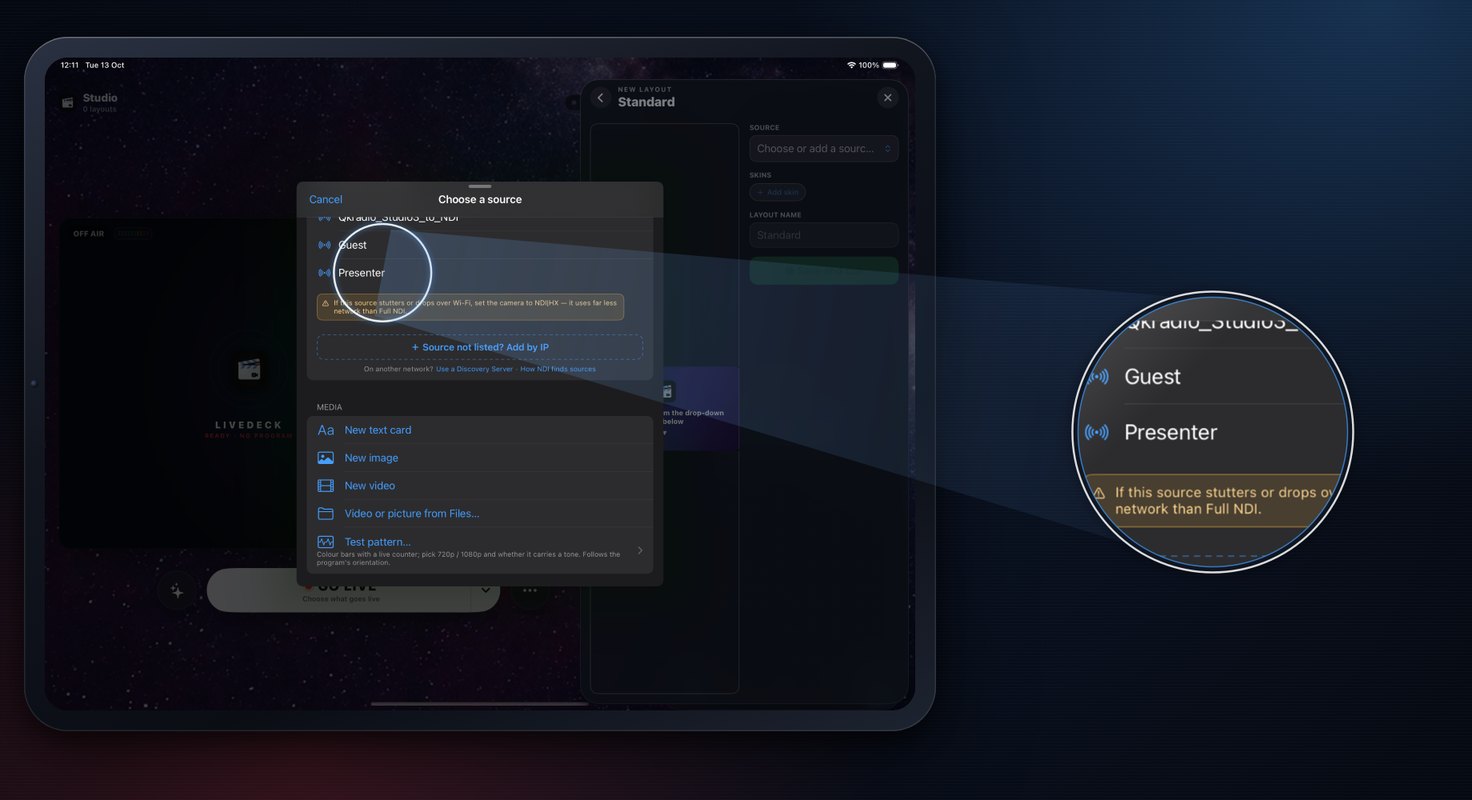
Add your camera
- Tap + → Layouts → Standard (one source, full frame).
- Tap the source slot and choose a camera: this device’s camera, a Satellite phone (Wi‑Fi or internet), or any NDI camera on your network.
- Tap ● Save and cue — the new tile appears in the tray, already cued.
Android+ → Layouts → Standard → SOURCE “Choose or add a source…”, then ● Save and cue.
 Step 3 of 8
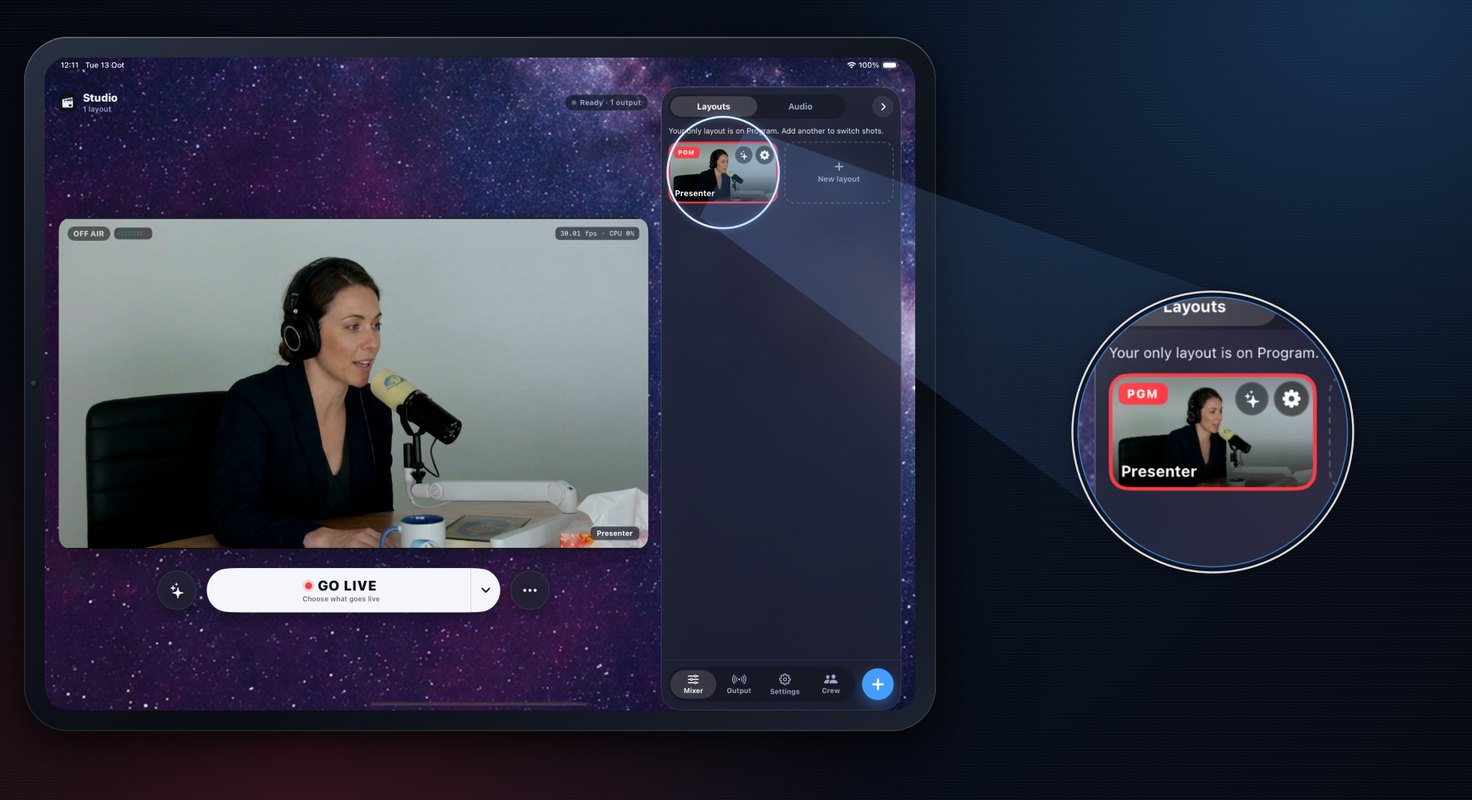
Put it on air
- Tap a tile once to cue it — green ring and a CUE badge (a new layout saved with ● Save and cue is already cued).
- Tap it again to take it — red ring and a red PGM badge. The Program monitor now shows your camera.
AndroidThe same: green CUE, red PGM, “Tap to cue · Tap again to take” above the tray.
 Step 4 of 8
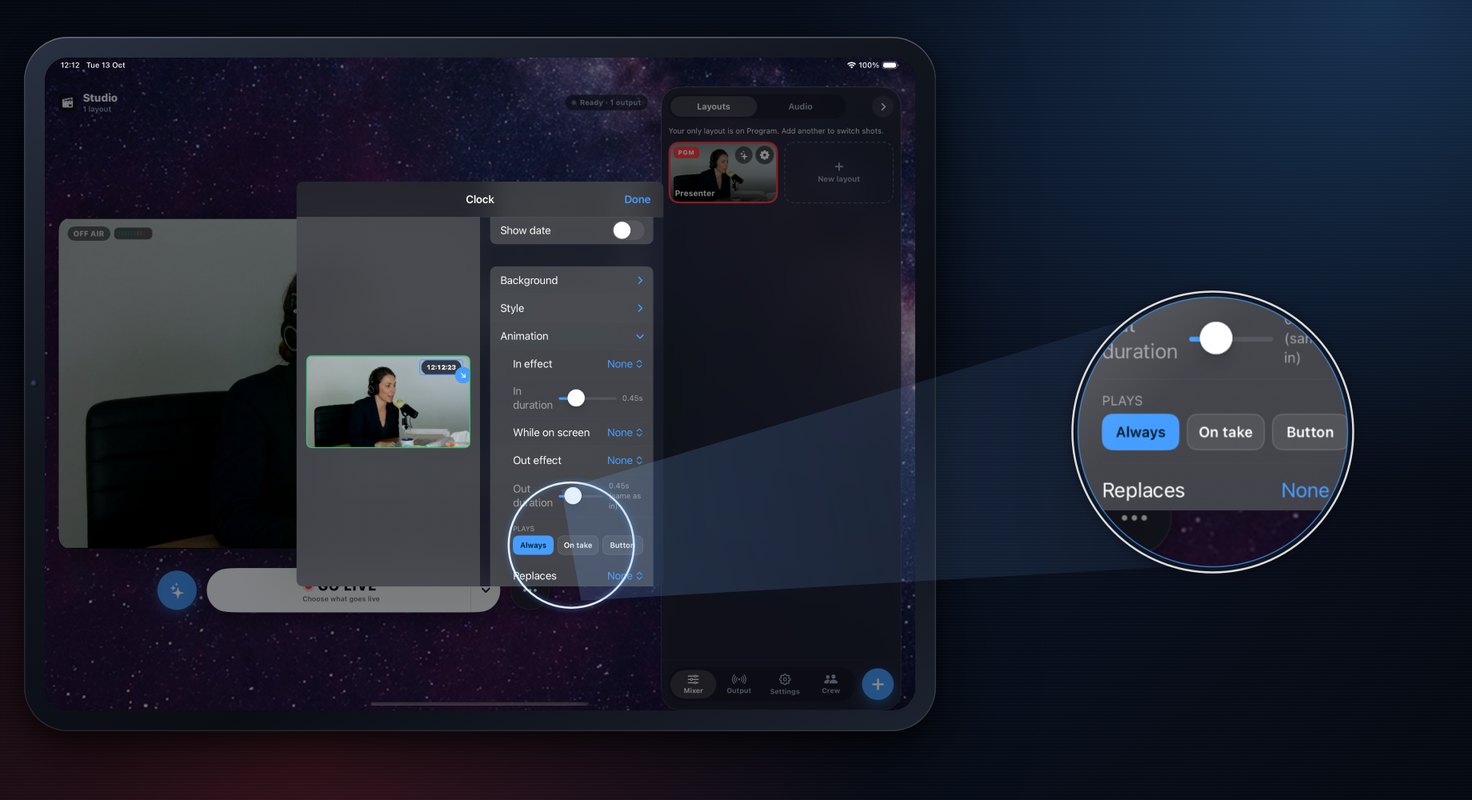
A clock that stays on
- Tap ✨ (Program skins) next to GO LIVE → Add clock.
- In the clock editor open Animation: PLAYS is already Always. A new clock starts top-right — drag it on the editor preview (or use Position & size) to move it.
- Tap Done. No button needed — it stays on for the whole stream.
AndroidSkins → New skin → Clock. The setting is called TRIGGER (Always · On take · Button).
 Step 5 of 8
A “Like us” button
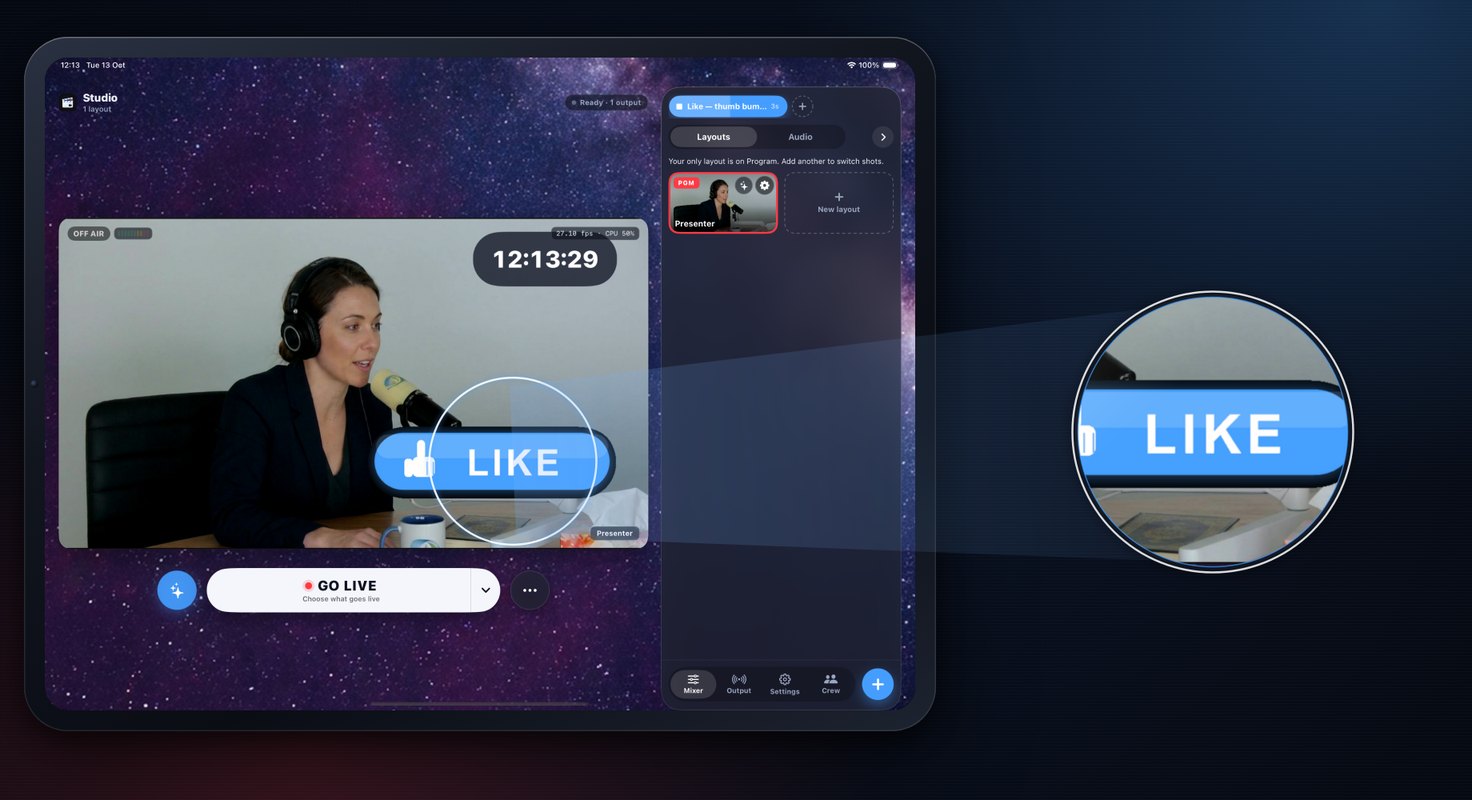
- Tap ✨ → Catalogue — ready-made skins → Calls to action → Like — thumb bump.
- Its editor opens — tap Done twice. It is added with PLAYS = Button, so a ▶ Like — thumb bump button appears in the skin-button row (on iPad landscape: above the Layouts tray).
- Tap it whenever you ask viewers to like the Page: the thumbs-up pops on the video and fades after 5 s.
AndroidSkins → New skin → Browse the skin catalogue; the same item and the same ▶ skin-button row.
 Step 6 of 8
Facebook via stream key
- On a computer open facebook.com/live/producer, choose your Page, pick Streaming software, tick Use a persistent stream key and copy the key.
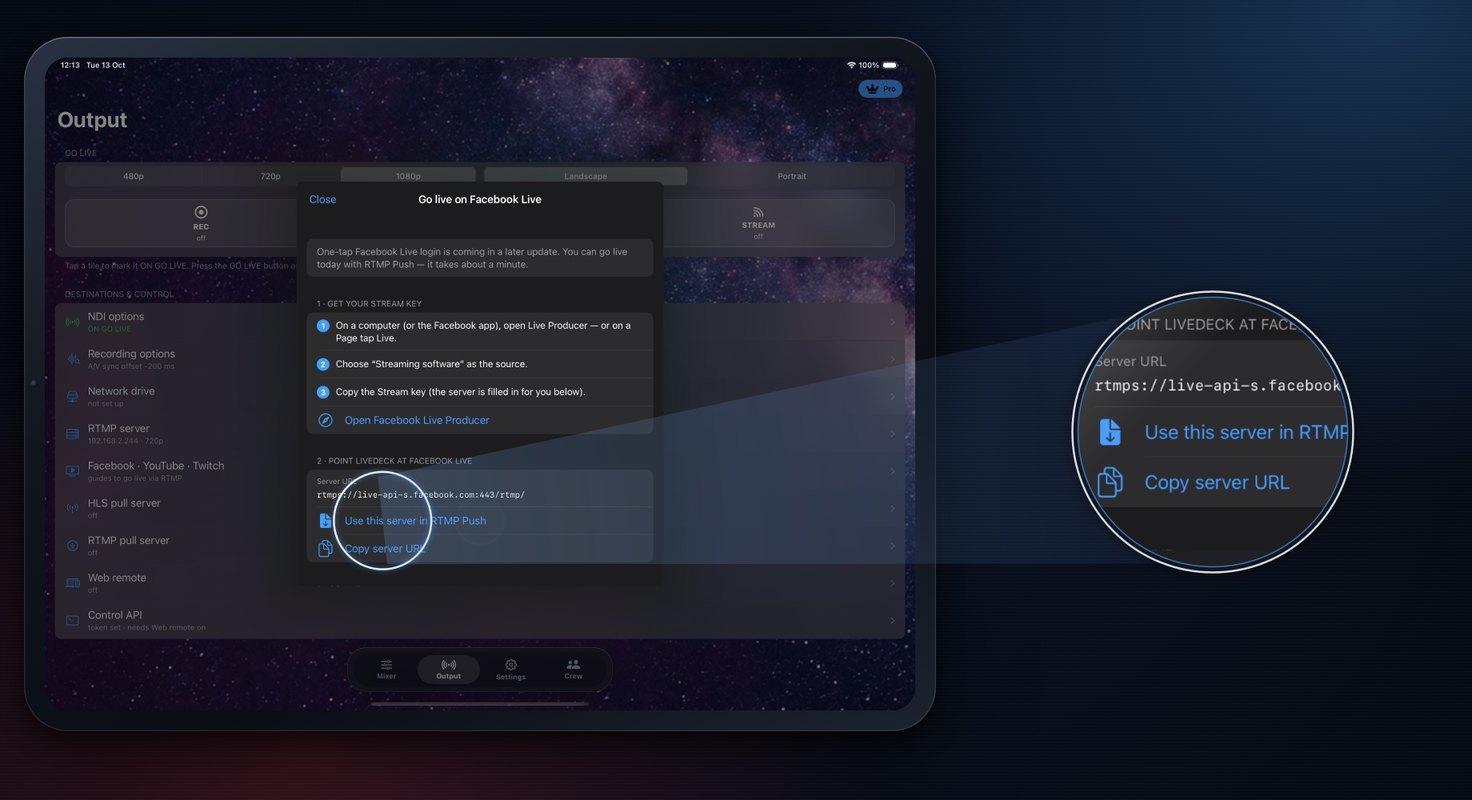
- In LiveDeck: Output → Facebook · YouTube · Twitch → Facebook Live → Use this server in RTMP Push (fills
rtmps://live-api-s.facebook.com:443/rtmp/). - Open the RTMP server card, paste the key into Stream key (it stays masked) and tap Add to GO LIVE.
- Set it once — a persistent key works every week. YouTube and Twitch work the same way.
AndroidThe RTMP server card opens Stream with Facebook / YouTube / Twitch server chips, a masked key with Show/Paste, and Save · ON GO LIVE.
 Step 7 of 8
Go live
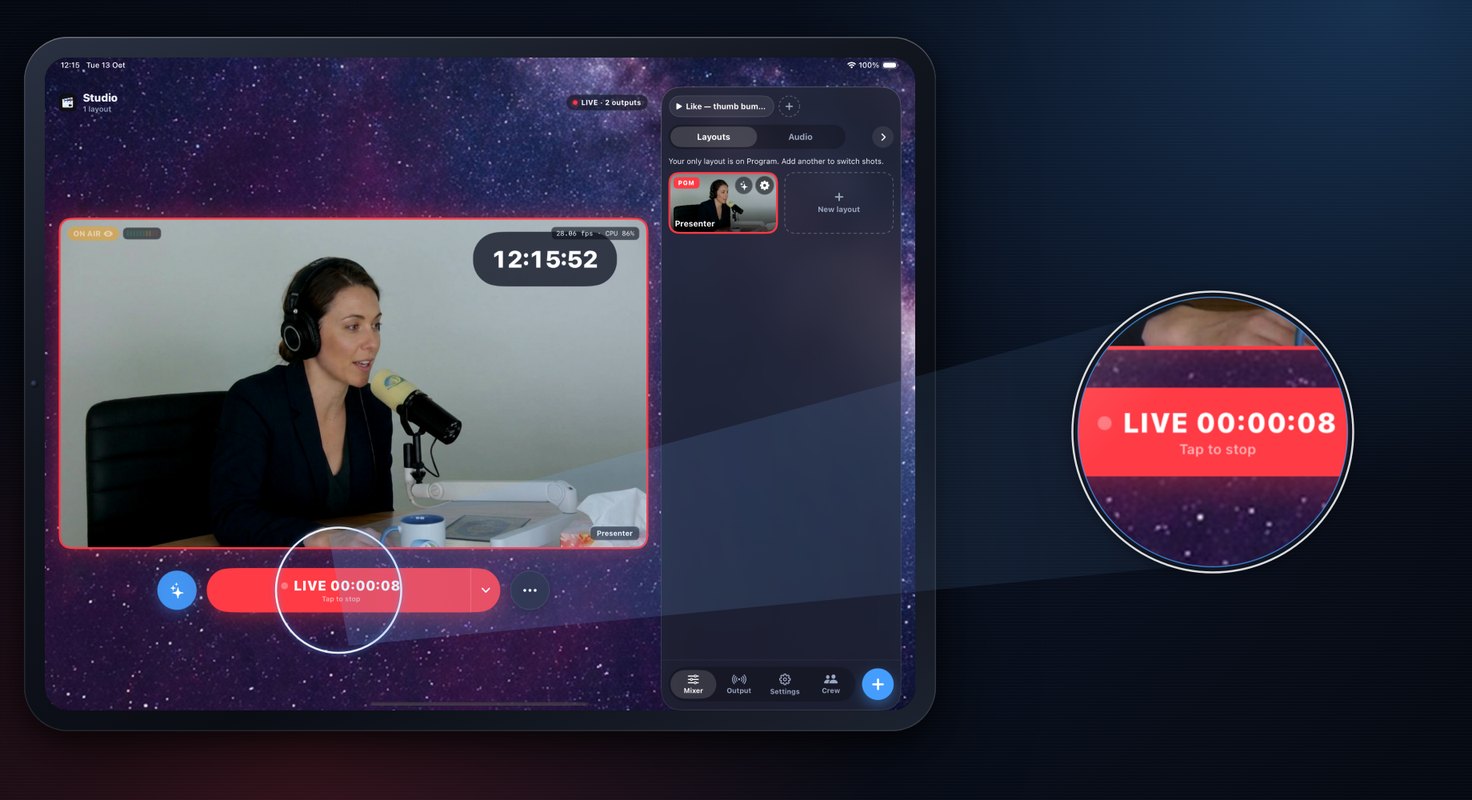
- Back on the Mixer, tap GO LIVE. The first time, LiveDeck asks Choose what goes live — keep the stream ticked and go.
- The pill turns red: LIVE with a running timer.
- Back in Live Producer, wait for the preview and press Go live.
AndroidThe same GO LIVE pill and “Choose what goes live” sheet.
 Step 8 of 8
End cleanly
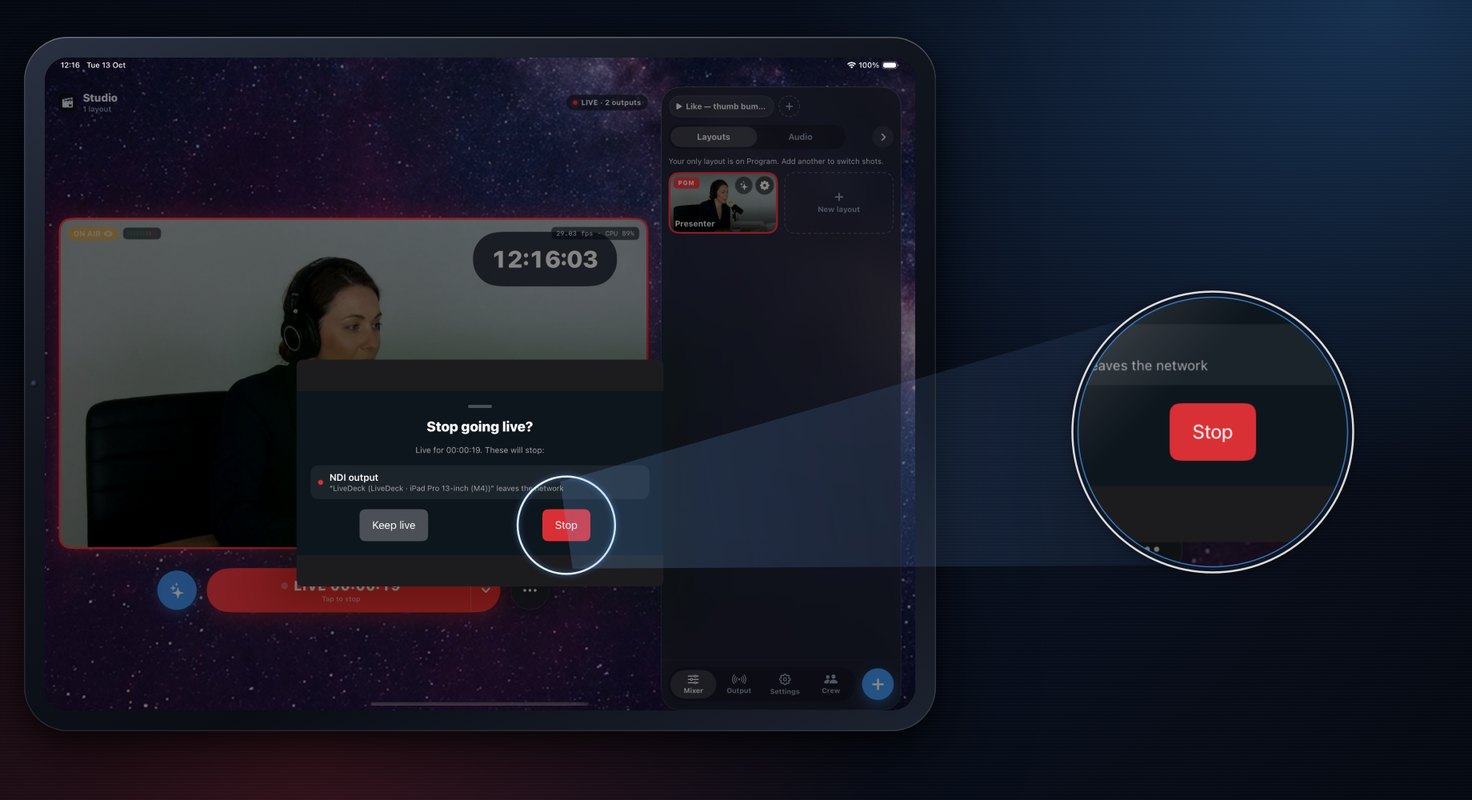
- Tap the red LIVE pill.
- LiveDeck asks Stop going live? and lists what will stop — tap Stop (or Keep live).
- Then end the video in Live Producer.
AndroidThe sheet reads Stop the show? with Keep going · Stop show.