LiveDeck · Tutorial 6 · 3:20
Keep score live
Add a scoreboard in a short guided setup: a score bug over your camera, a full-screen board, team names and flags, and a clock. Then keep score from the phone, the web remote or a Stream Deck. Shown on iPhone; Android differences are noted under steps where they differ.
- LiveDeck on iPad, iPhone or Android
- A camera on Program
- Optional: a TV with LiveDeck, a Stream Deck with Companion
- About 4 minutes
 Step 1 of 11
Add a scoreboard
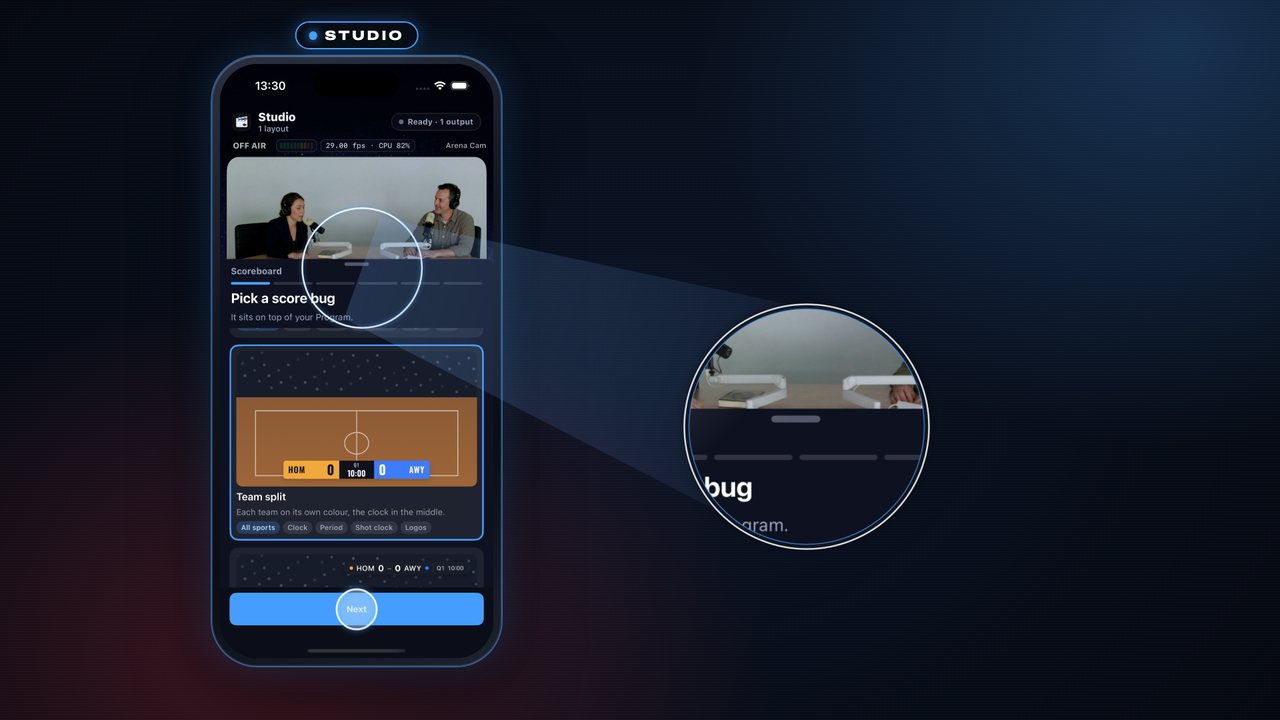
- On Program tap ✨, then Add a skin › New › Scoreboard. A short guide opens. Step 1: pick a score bug; it plays on Program at once.
AndroidOn Android, tap ✨ on Program, then Add a skin: Scoreboard is a tile after Drawing.
 Step 2 of 11
A board and the sport
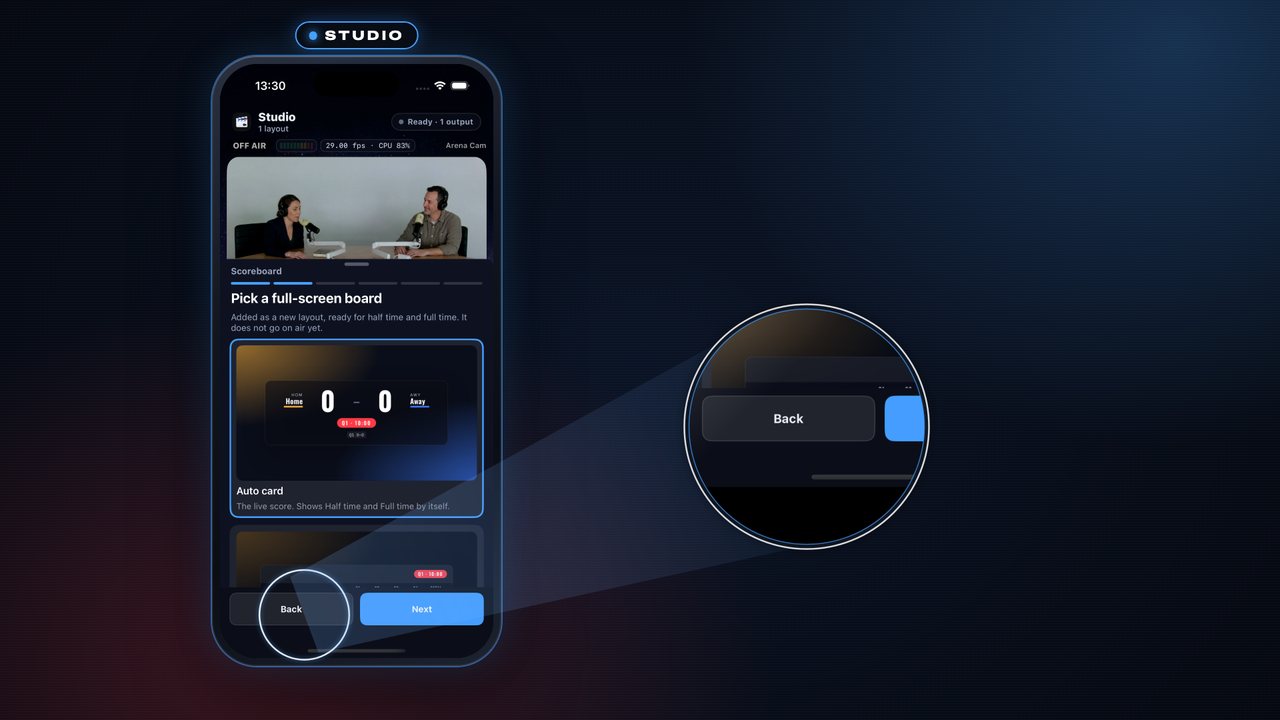
- Step 2: pick a full-screen board. It is saved as a layout. Step 3: pick the sport, which sets the scoring buttons.
AndroidThe same.
 Step 3 of 11
Teams and flags
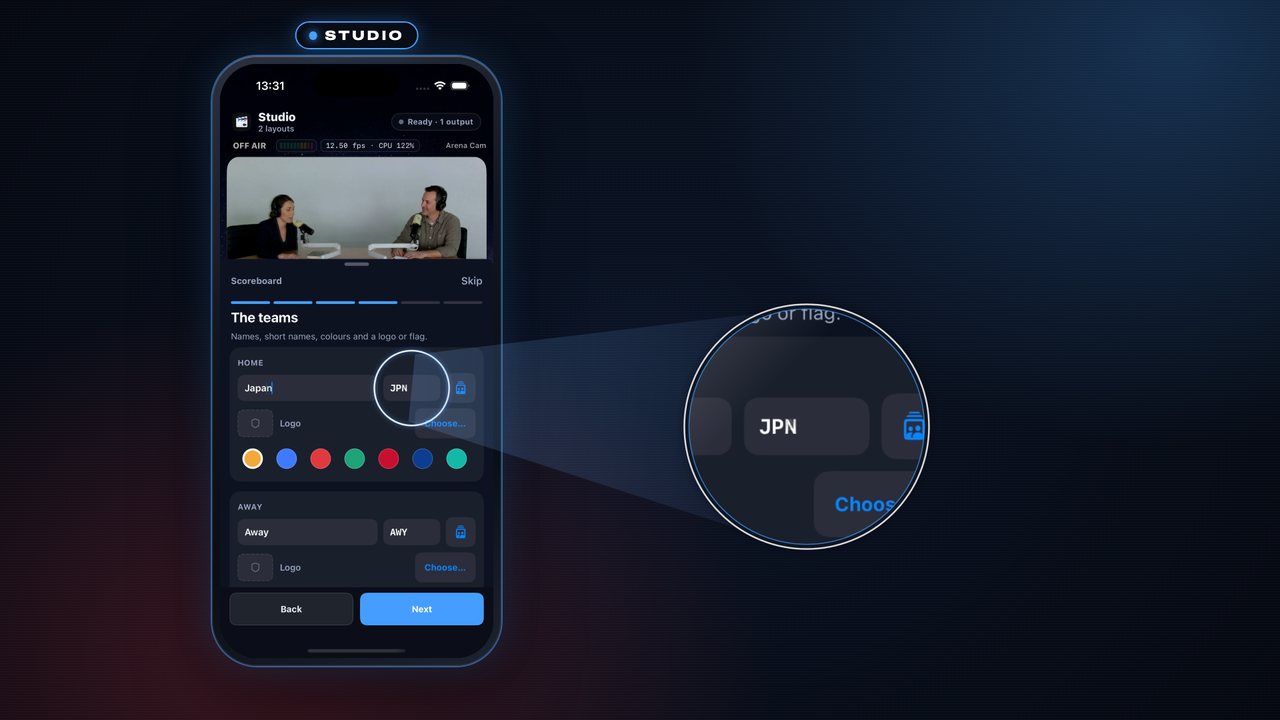
- Step 4: type each team's name; the short name follows it (JPN, BRA). Tap Logo › Flag…, search the country and tap its flag.
AndroidThe same.
 Step 4 of 11
Clock, then all set
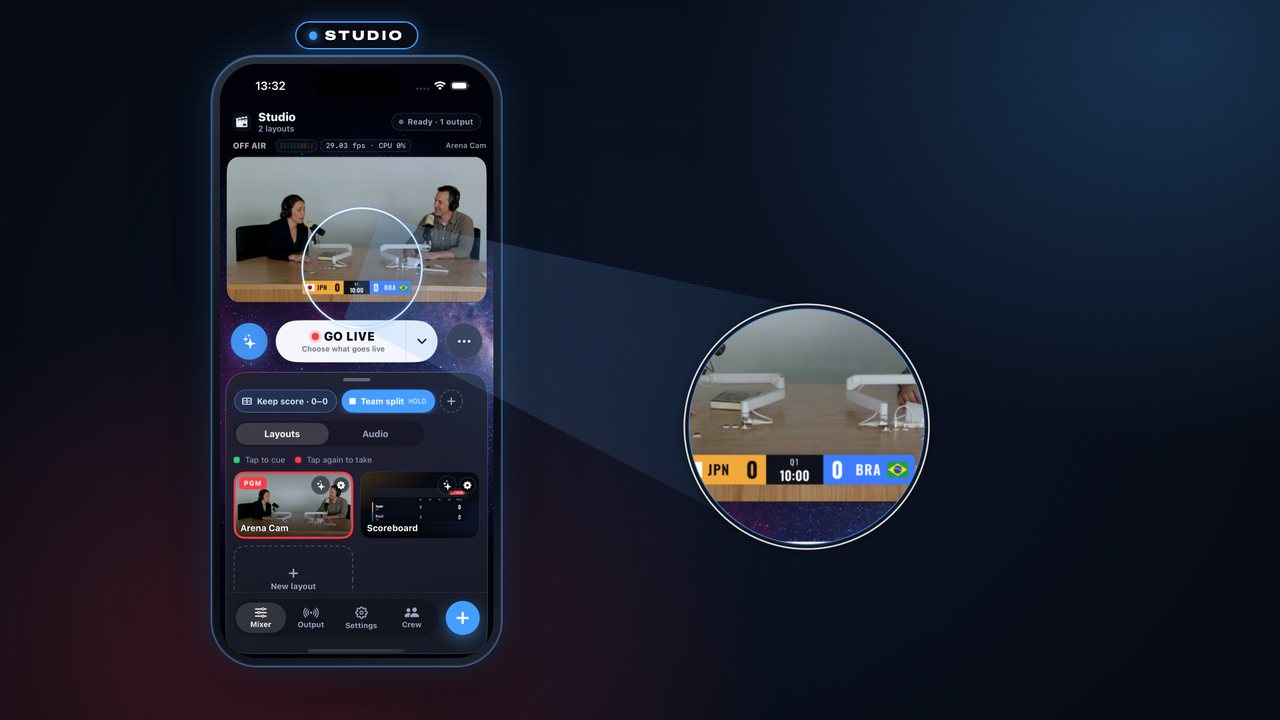
- Step 5: choose how the clock counts and what the bug shows. Step 6 lists what is ready. Tap Done.
AndroidThe same.
 Step 5 of 11
Keep score
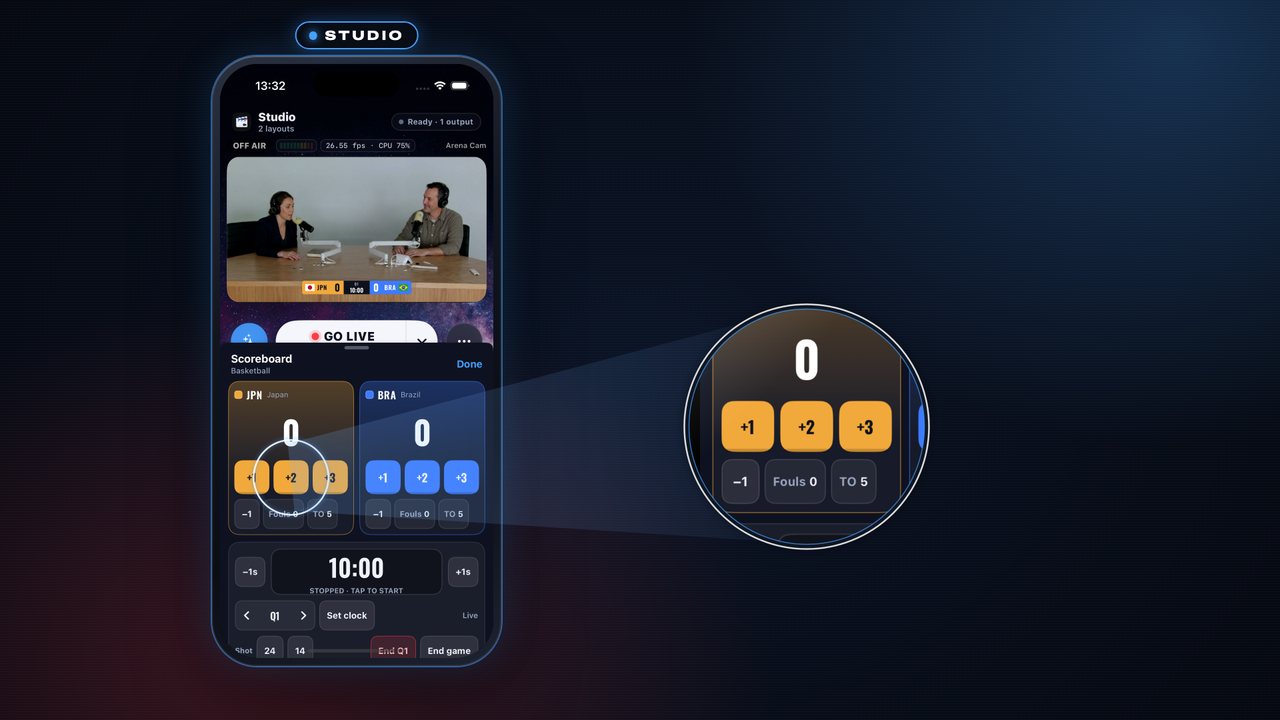
- Tap Keep score, then +1, +2 or +3 for the team that scored. Tap the clock to start and stop it, step the period with ‹ ›, and Undo takes back the last change.
AndroidThe same.
 Step 6 of 11
Take the board
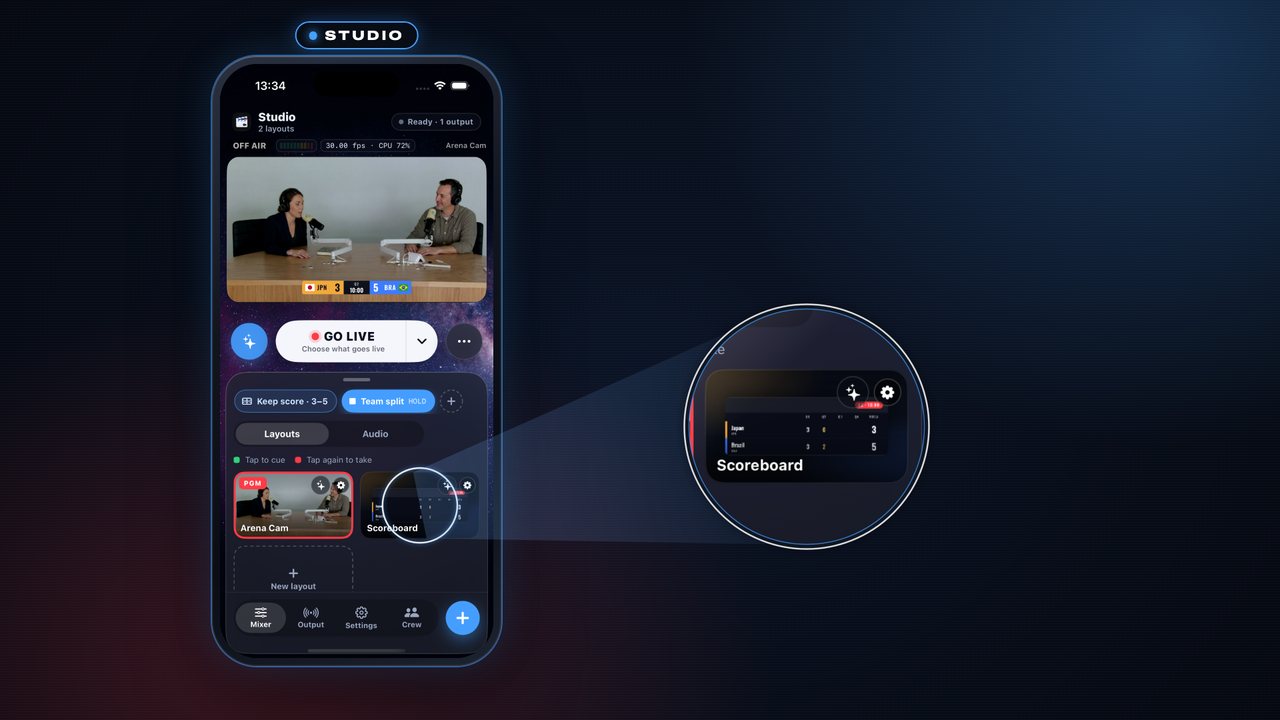
- Your board is waiting in the layouts. Tap Scoreboard once to cue it and again to take it. Tap your camera layout twice to go back.
AndroidThe same.
 Step 7 of 11
Add it again
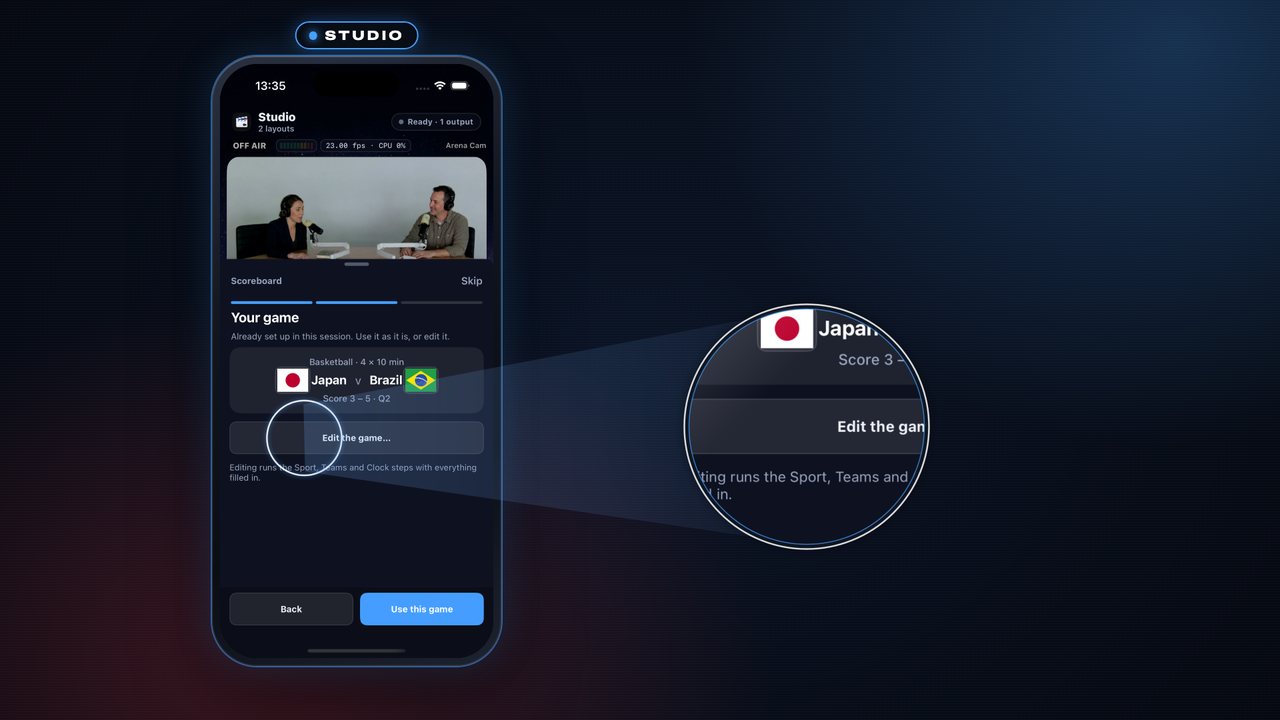
- Adding a scoreboard again shows Your game with Edit…, so your teams are kept. Tap Use this game.
AndroidThe same.
 Step 8 of 11
From a browser
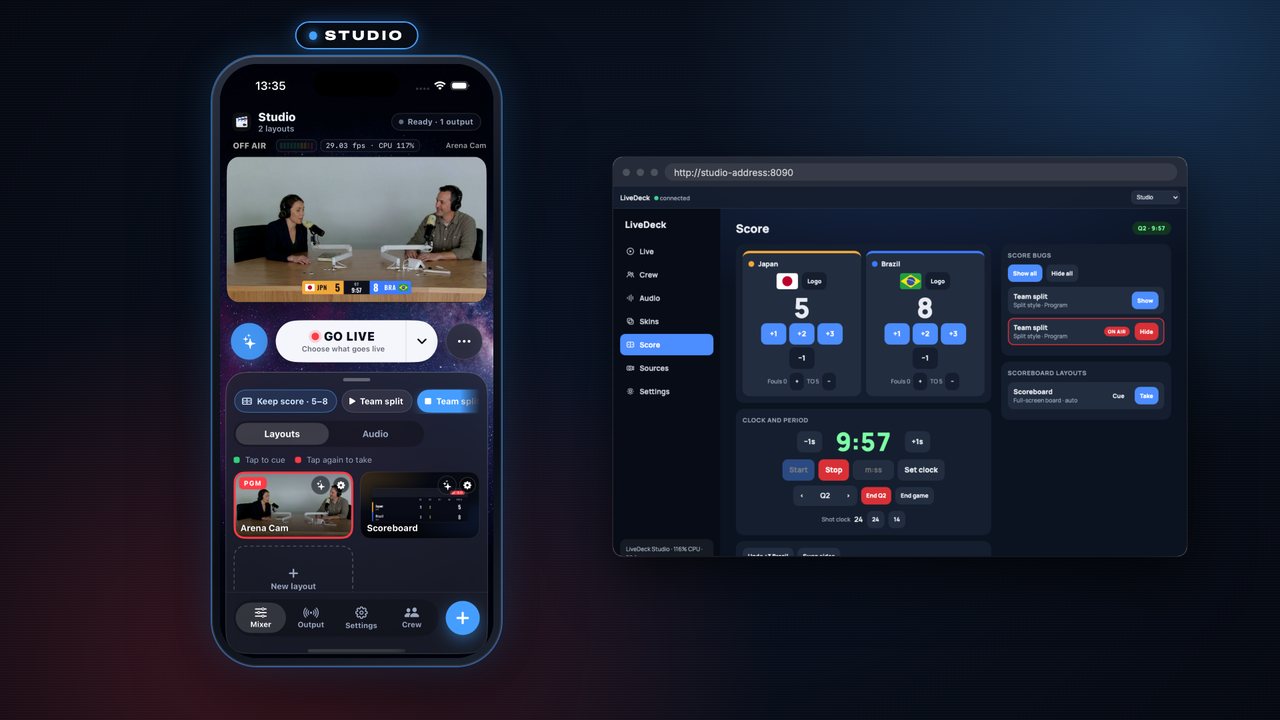
- The Studio's web remote has a Score page with the same buttons, so anyone on the Wi‑Fi can keep score. Stream Deck and Companion drive the same controls.
AndroidAn Android Studio serves the same Score page from its web remote.
 Step 9 of 11
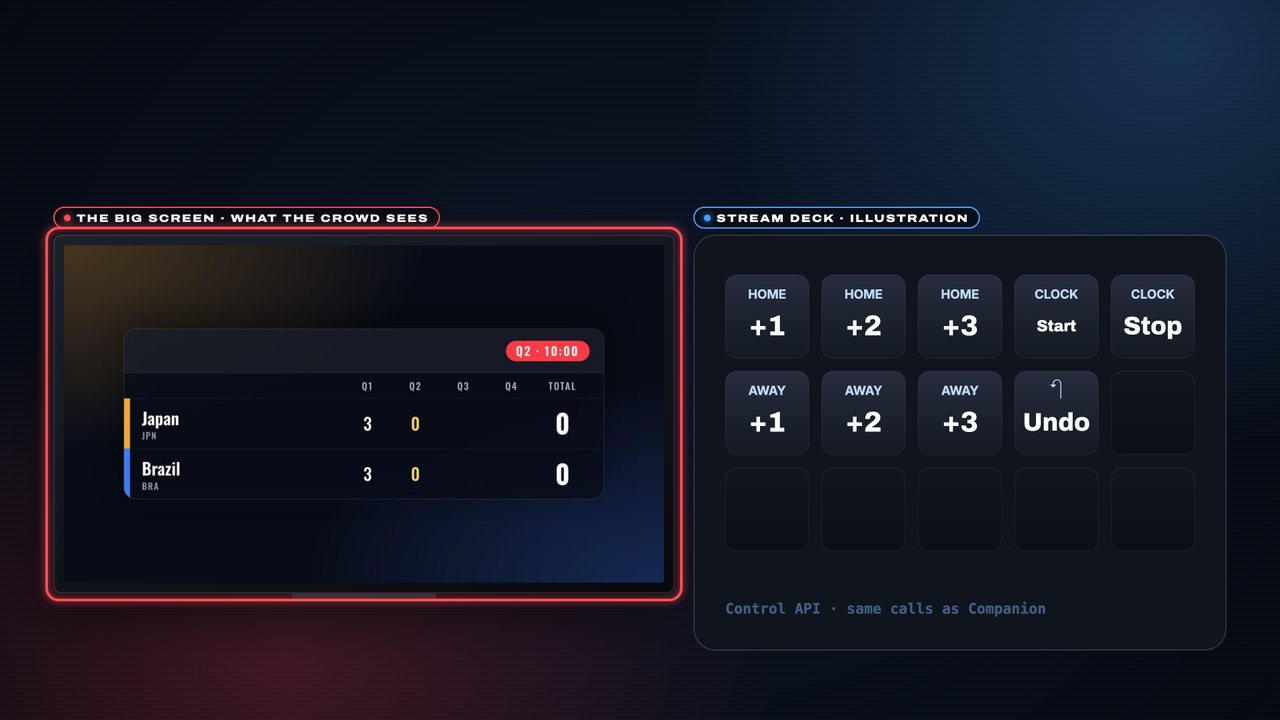
The big screen
- Put LiveDeck on an Apple TV or an Android TV and the scoreboard fills the big screen for the whole crowd. This is the real Program picture.
AndroidAndroid TV and Apple TV both run LiveDeck’s TV app.
 Step 10 of 11
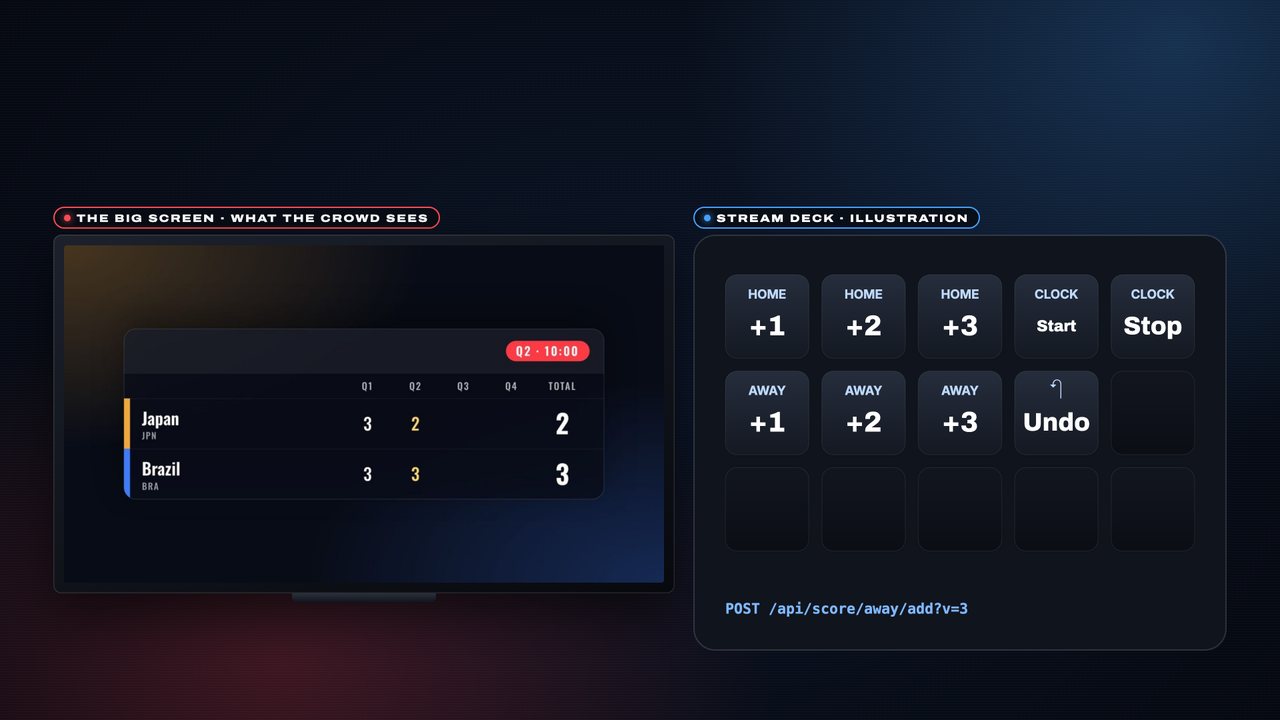
A Stream Deck keeps score
- With the Bitfocus Companion module a Stream Deck keeps score: +1, +2 or +3 for either team. Each key is one Control API call (/api/score/…) and the board on the TV changes. (The deck here is an illustration.)
AndroidThe same.
 Step 11 of 11
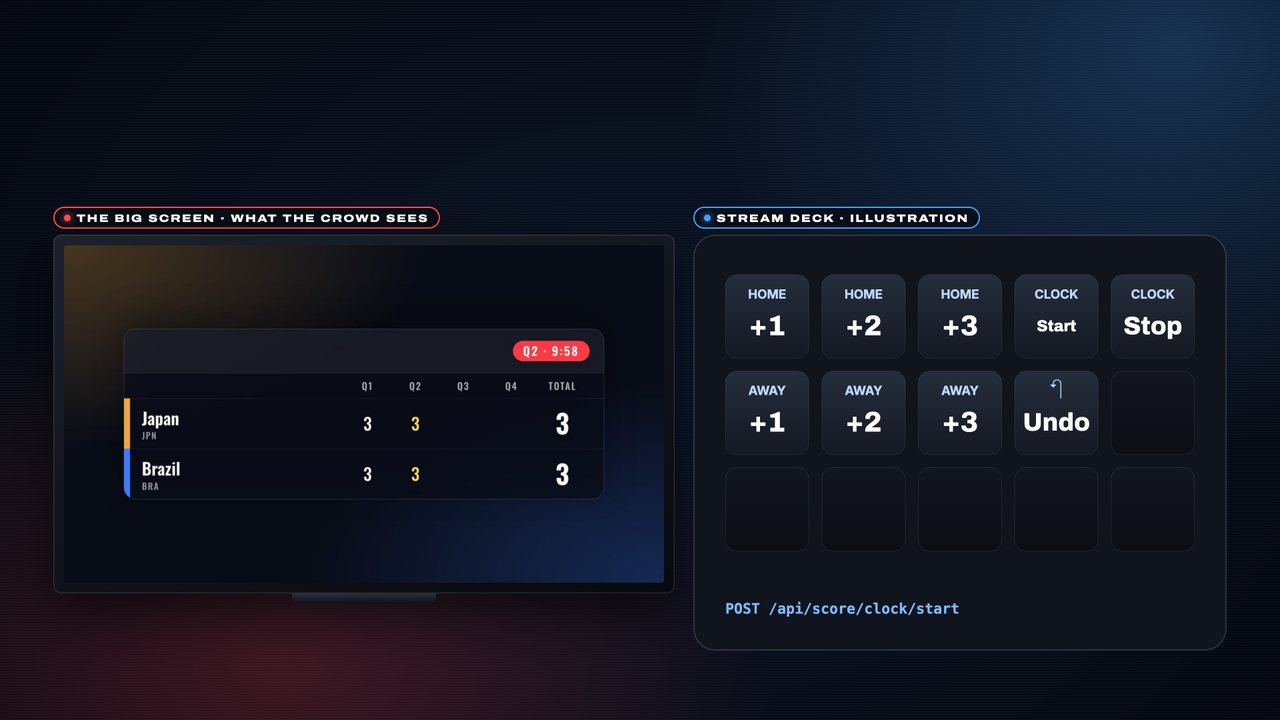
Clock and Undo
- Keys for the clock, Start and Stop, and Undo for a slip. Every key drives the real app, and the TV follows.
AndroidThe same.