LiveDeck · Tutorial 5 · 2:54
Run a fundraiser
Add a fundraiser in one short setup: a total over your camera, a full-screen board, goals that celebrate as you pass them, and donations added from the phone, a volunteer’s phone or a Stream Deck. Shown on iPhone; Android differences are noted under steps where they differ.
- LiveDeck on iPad, iPhone or Android
- A camera on Program
- Optional: a TV with LiveDeck, a Stream Deck with Companion
- About 3 minutes
 Step 1 of 12
Add a Fundraiser
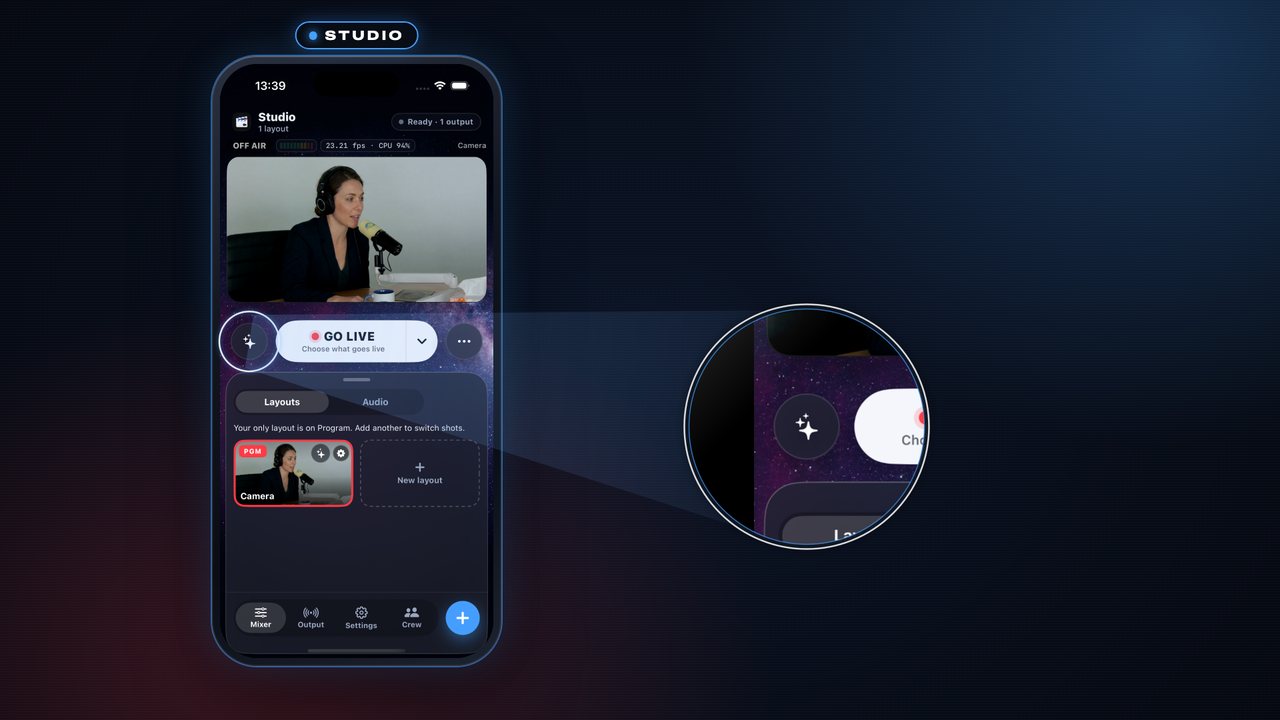
- Tap Skins ✨ under Program, then Add a skin › New › Fundraiser. A short setup opens in five steps, with Program still live above it.
AndroidOn Android, tap Skins ✨ under Program, then Add a skin: Fundraiser is a tile after Drawing.
 Step 2 of 12
Pick a skin
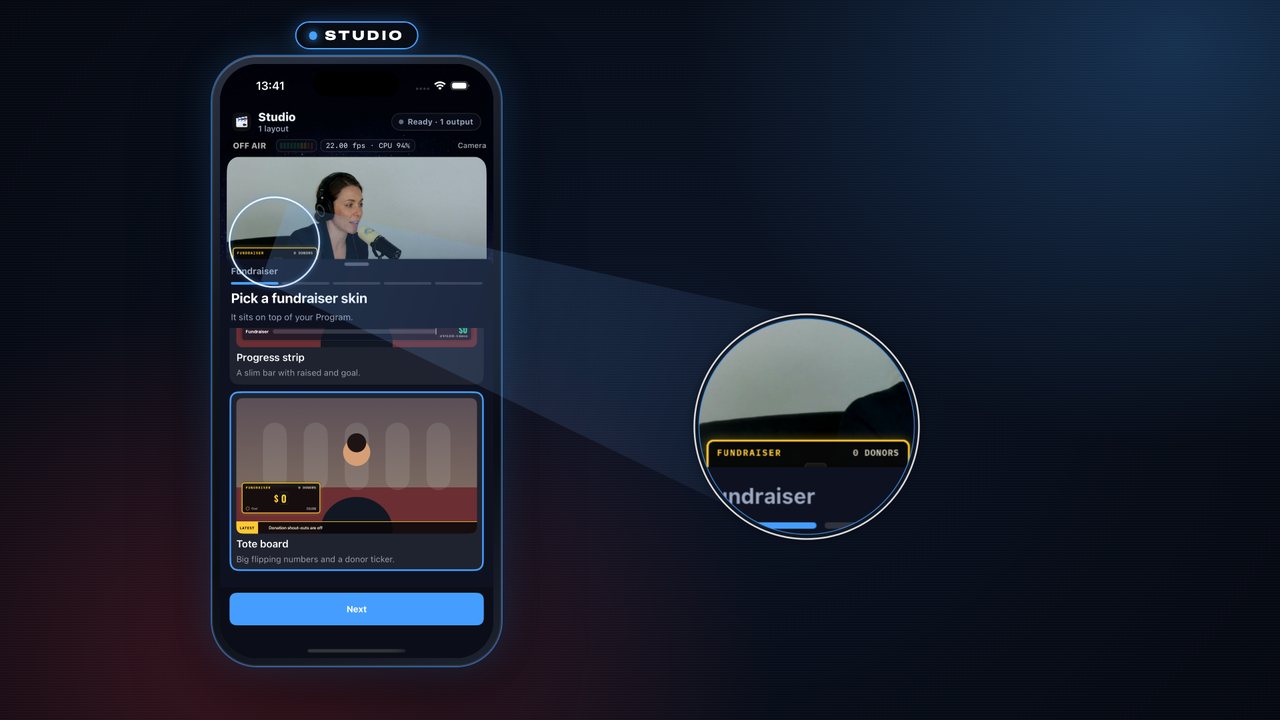
- Pick a skin: the small total over your camera. Here the Tote board, with flipping numbers and a ticker of the latest donors. It goes on air straight away.
AndroidThe same.
 Step 3 of 12
A full-screen look
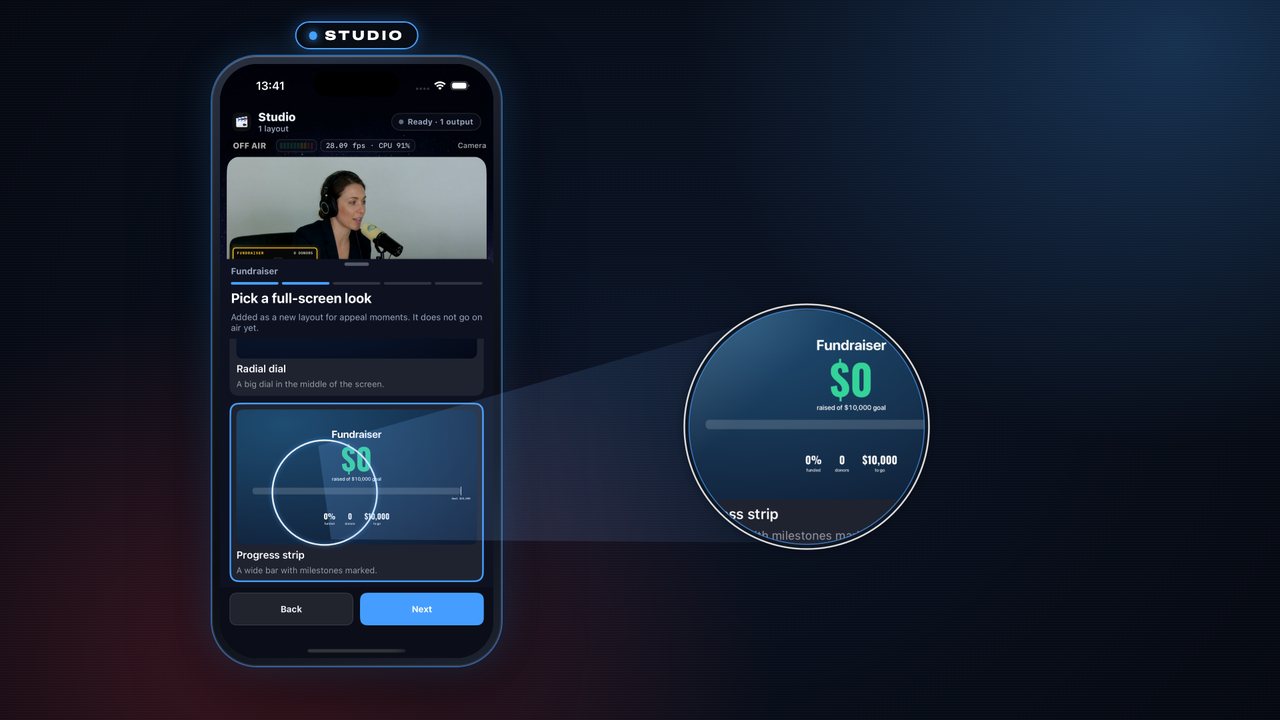
- Pick a full-screen look. It is added as a layout (not on air yet), so you can switch to it later.
AndroidThe same.
 Step 4 of 12
The appeal
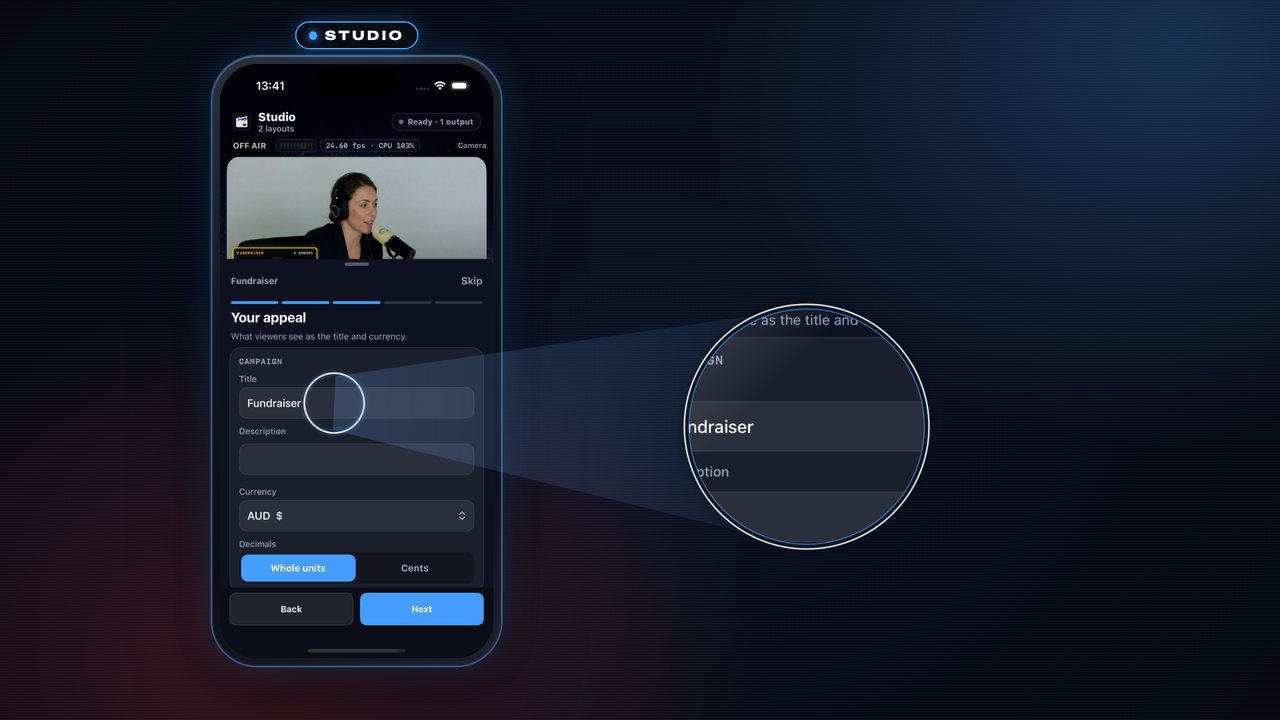
- Appeal: type the title your viewers will read, here School library appeal.
AndroidThe same.
 Step 5 of 12
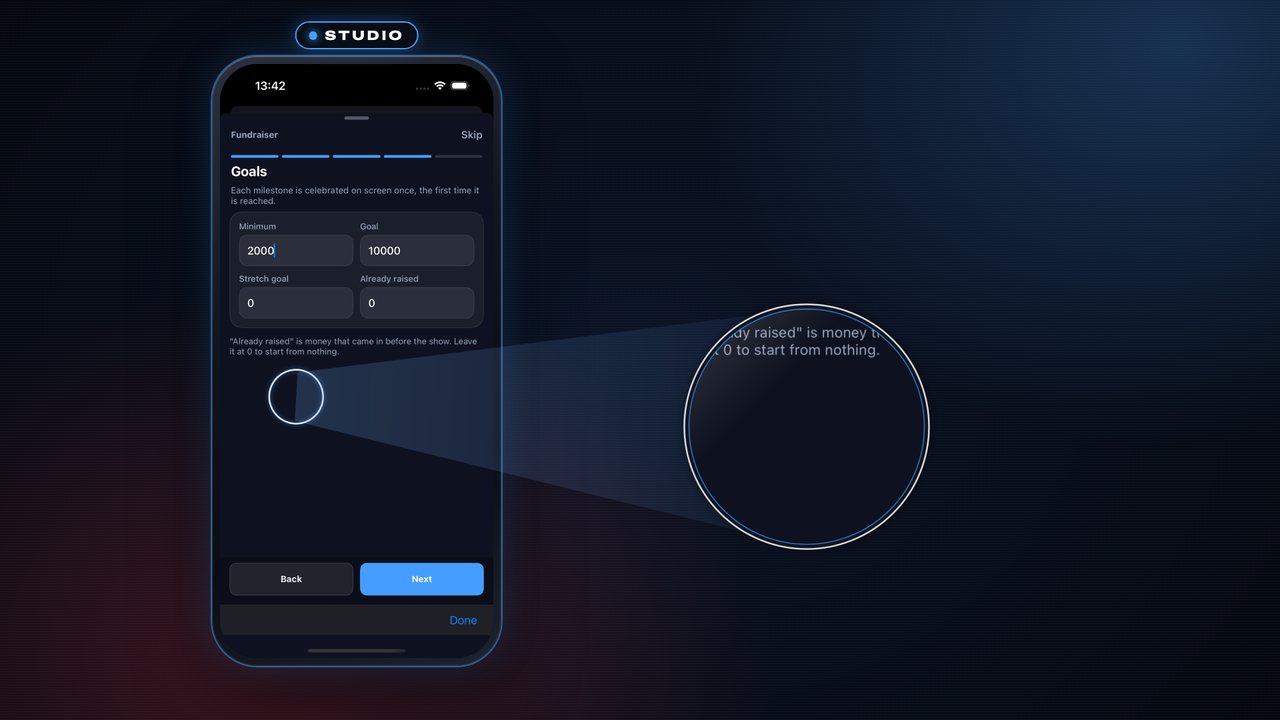
Set the goals
- Minimum, Goal and Stretch goal: the total celebrates as it passes each one. Already raised is money that came in before the show.
AndroidThe same.
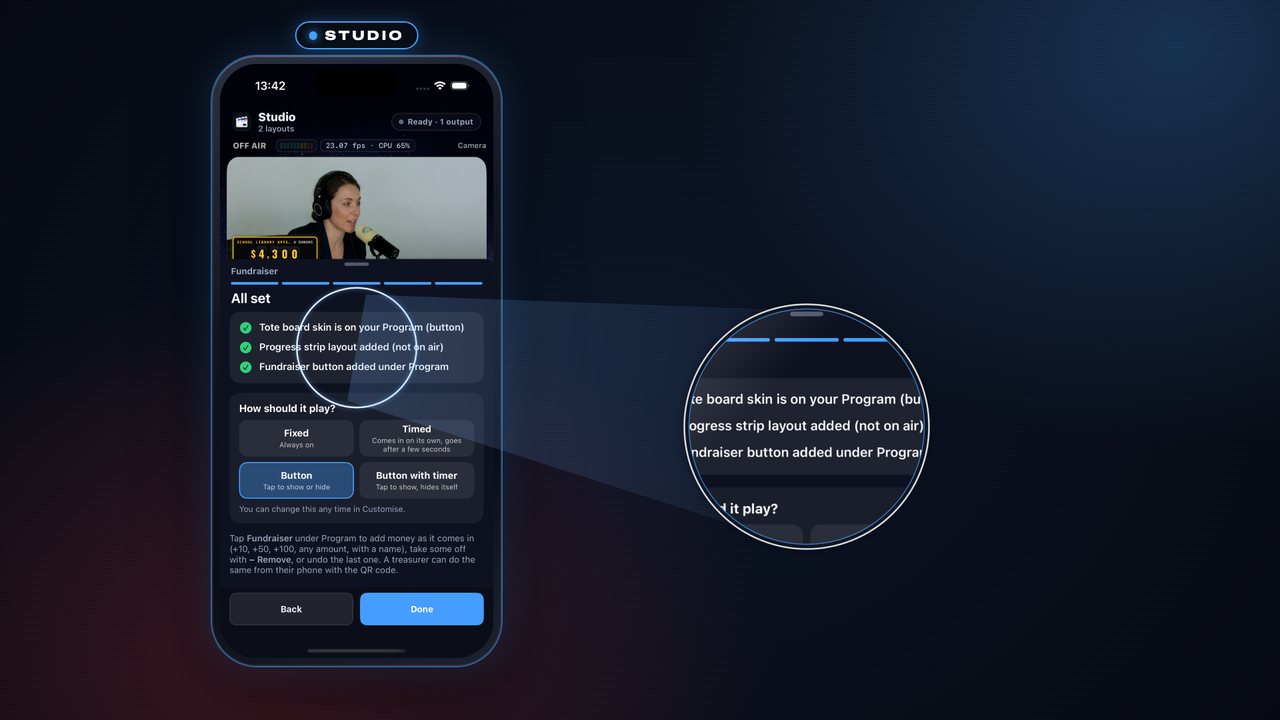 Step 6 of 12
All set
- The checklist shows what was added. Done closes it, and a Fundraiser button appears under Program. Your stream now shows the total while you run it from the phone.
AndroidThe same.
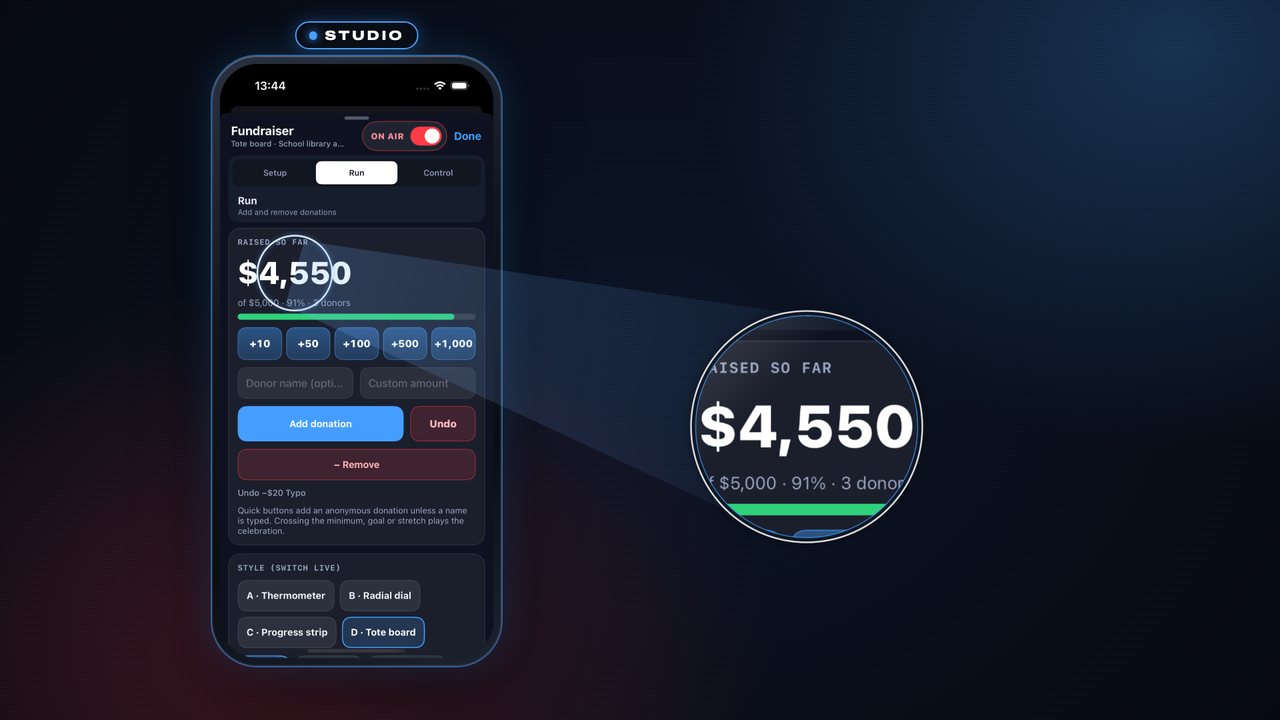 Step 7 of 12
Add donations
- Fundraiser › Run: quick buttons (+50, +100…), or a Donor name and amount with Add donation. A slip? − Remove takes an amount off with a note; it never celebrates and Undo puts it back.
AndroidThe same.
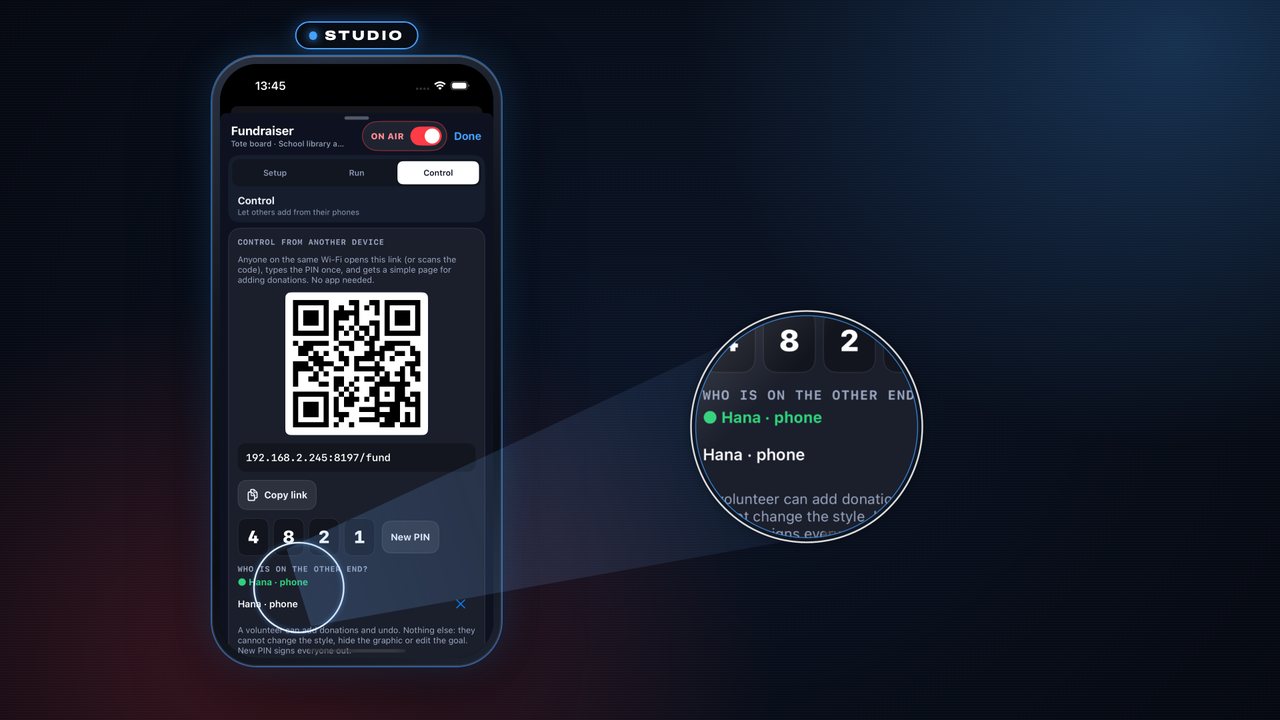 Step 8 of 12
A treasurer on their phone
- Control shows a QR code and a 4-digit PIN. A volunteer on the same Wi-Fi opens the page, types a name and the PIN, and can add or remove donations. No app to install.
AndroidThe same QR code and PIN; the Studio can be iPhone, iPad or Android.
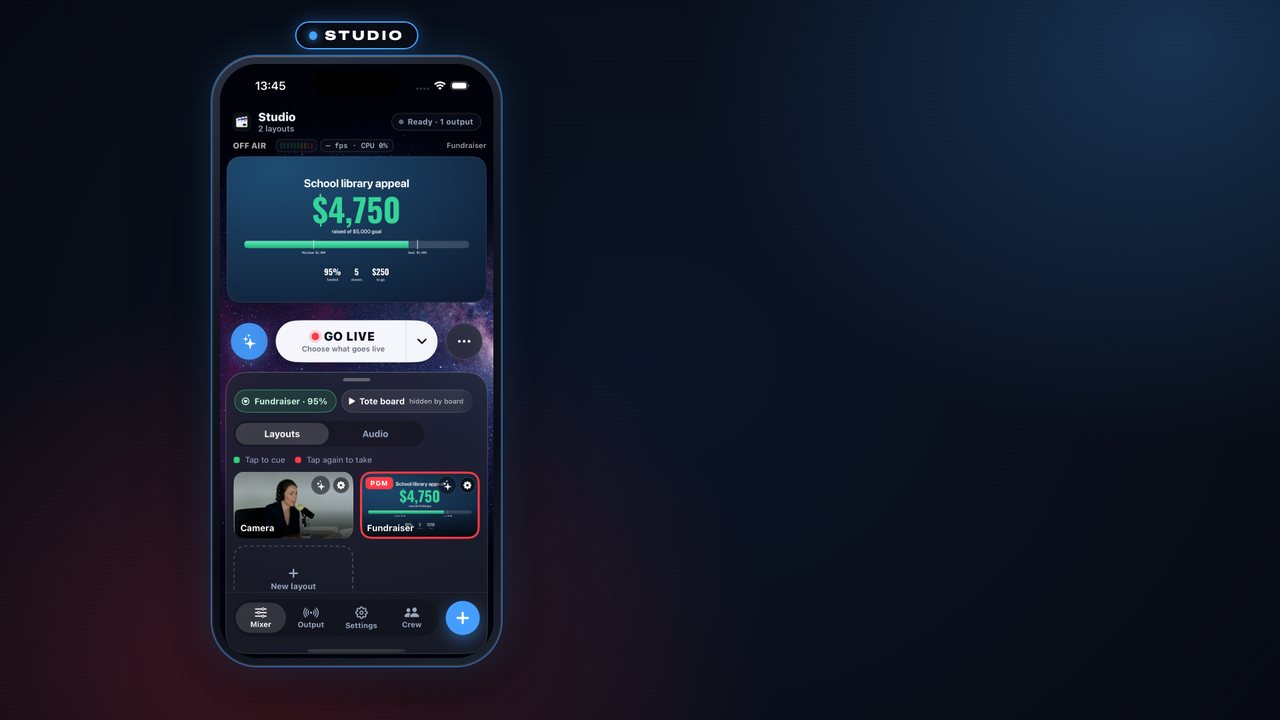 Step 9 of 12
Full screen layout
- The layout the setup made is in the tray: tap it to cue, tap again to take it to Program. The Fundraiser skin steps aside, so the screen shows only the full-screen total.
AndroidThe same.
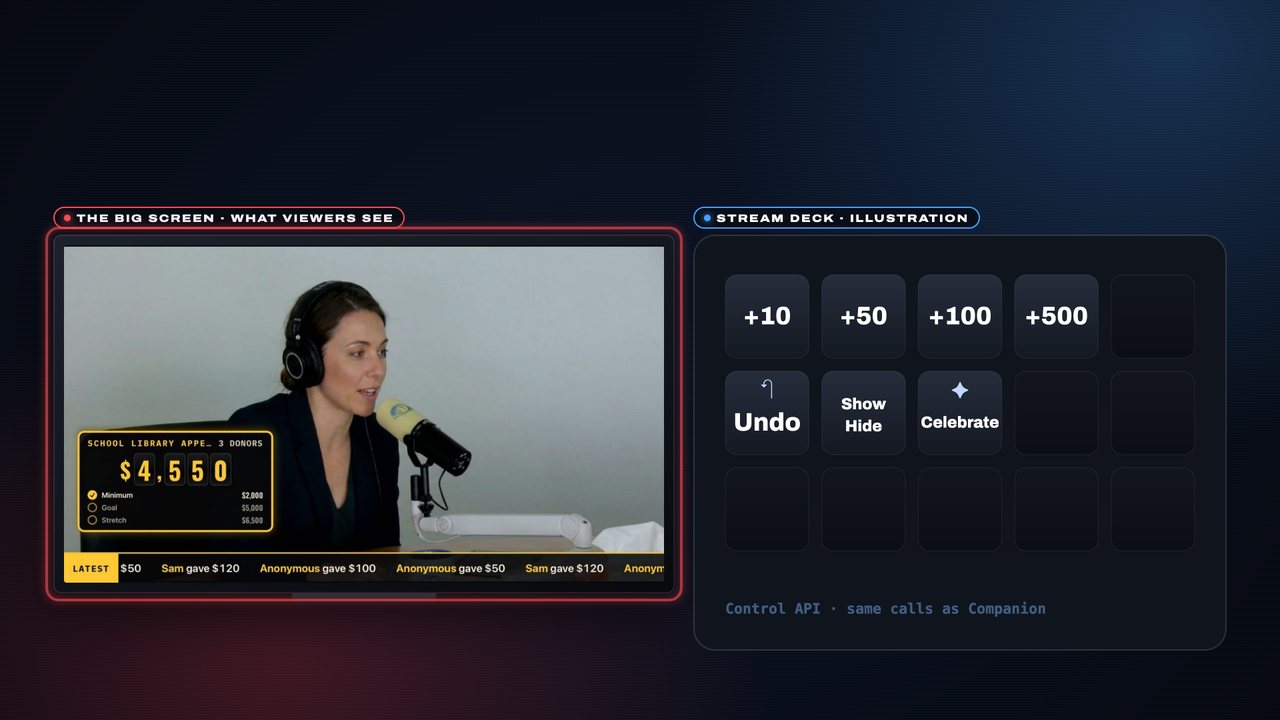 Step 10 of 12
The big screen
- Put LiveDeck on an Apple TV or an Android TV and your viewers see the output on the big screen, while the phone stays in your hand. This is the real Program picture.
AndroidAndroid TV and Apple TV both run LiveDeck’s TV app.
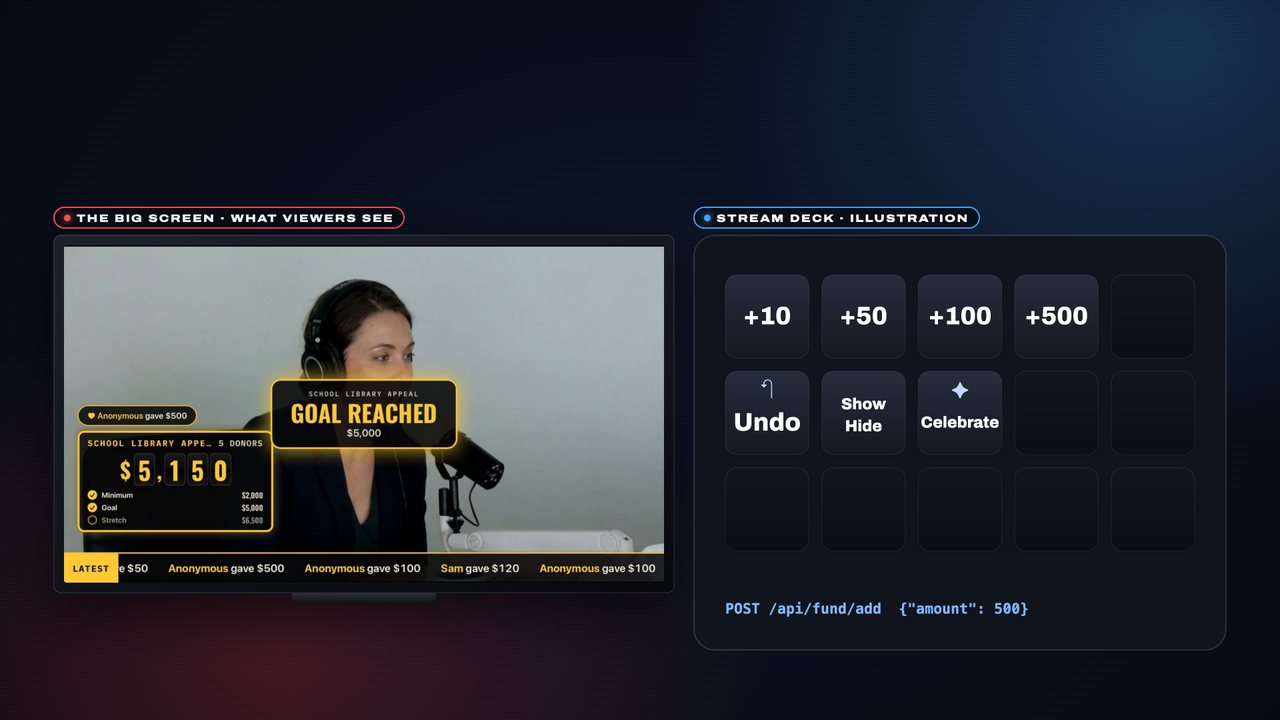 Step 11 of 12
A Stream Deck
- With the Bitfocus Companion module a Stream Deck can add donations and Undo them. Each key is one Control API call; +500 crosses the goal and the banner plays on the big screen. (The deck here is an illustration.)
AndroidThe same.
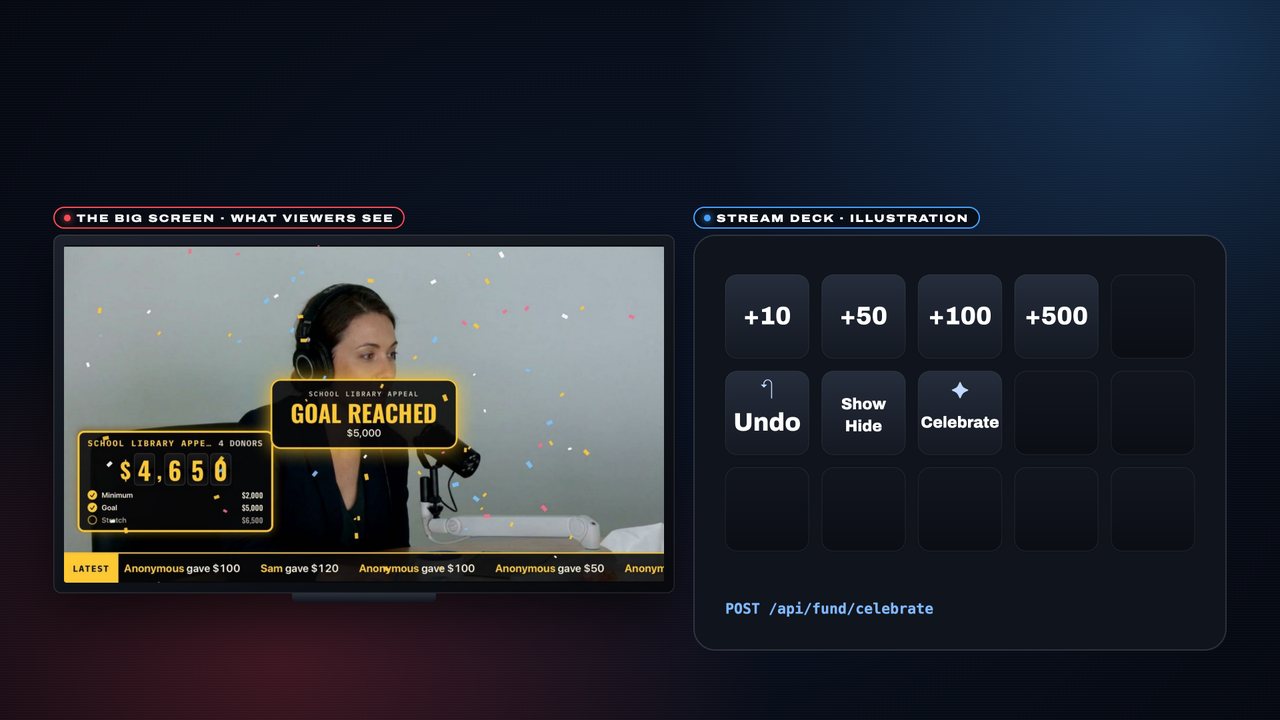 Step 12 of 12
Show, hide, celebrate
- The same keypad can Show / Hide the fundraiser and Celebrate on demand, so you control what is on the TV or on the phone without touching either.
AndroidThe same.