Satellite backup recordings
A satellite phone records a full-quality backup of its own camera from the moment the Studio connects. A dropped Wi‑Fi link never stops it, END does, and after the show the Studio pulls each file over the Wi‑Fi, checks it and frees the phone. Shown on iPhone; Android differences are noted under every step.
- LiveDeck on the Studio (iPad, iPhone, Mac or Android)
- A phone in Satellite mode on the same Wi‑Fi
- About 2 minutes
 Step 1 of 7
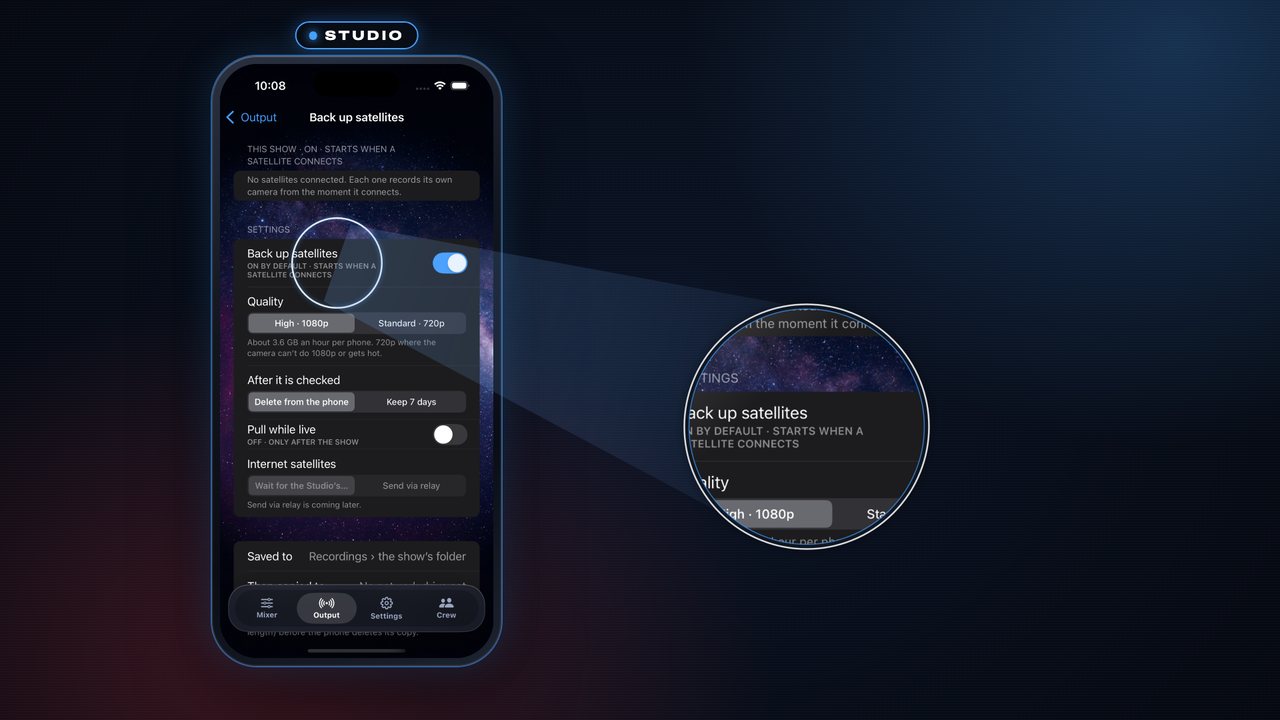
Back up satellites: on
- On the Studio, open Output and find Back up satellites under Record.
- It is ON by default (“starts when a satellite connects”). Its page has the settings: Quality (High · 1080p or Standard · 720p), After it is checked (Delete from the phone or Keep 7 days) and Pull while live (off: files are collected after the show).
AndroidOutput › Record › Back up satellites, the same; its switch is on the row.
 Step 2 of 7
A phone connects
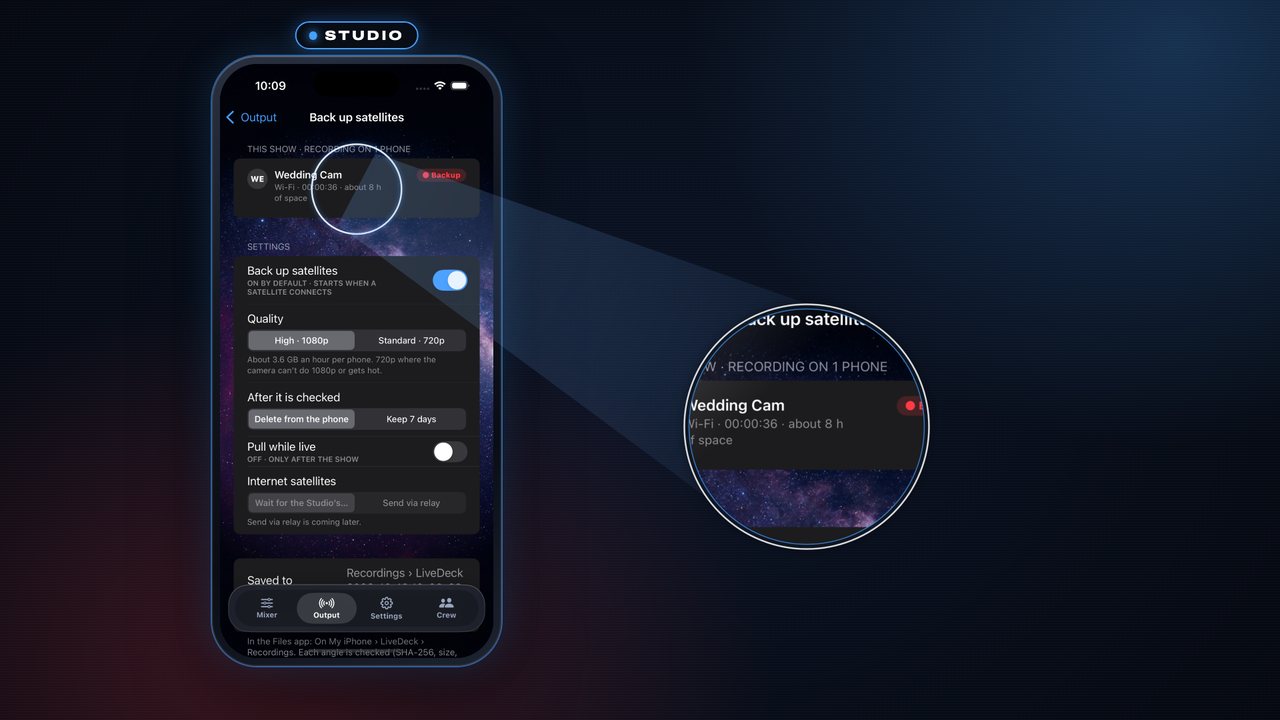
- Put a phone in Satellite mode and send its camera. The moment the Studio connects, the phone starts recording its own copy: a red BACKUP chip shows the time and the space left, e.g. “BACKUP 00:00:07 · about 8 h of space”.
- The first time, the phone explains: “Recording a backup on this phone. The Studio collects it after the show.” On the Studio the phone’s row reads ● Backup.
AndroidAn Android satellite shows the same BACKUP chip; the Studio row reads ● Backup.
 Step 3 of 7
GO LIVE as usual
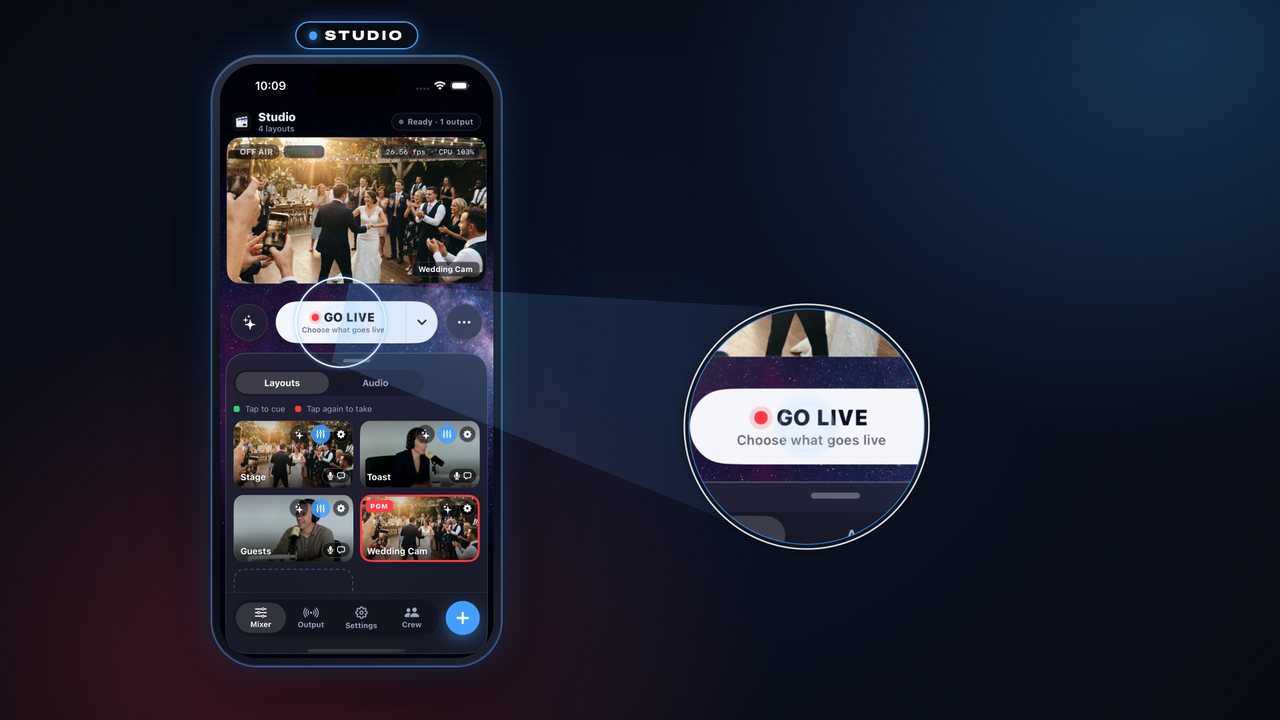
- Go live as usual. The backup started when the phone connected, so going live changes nothing for it.
AndroidThe same.
 Step 4 of 7
The Wi‑Fi drops
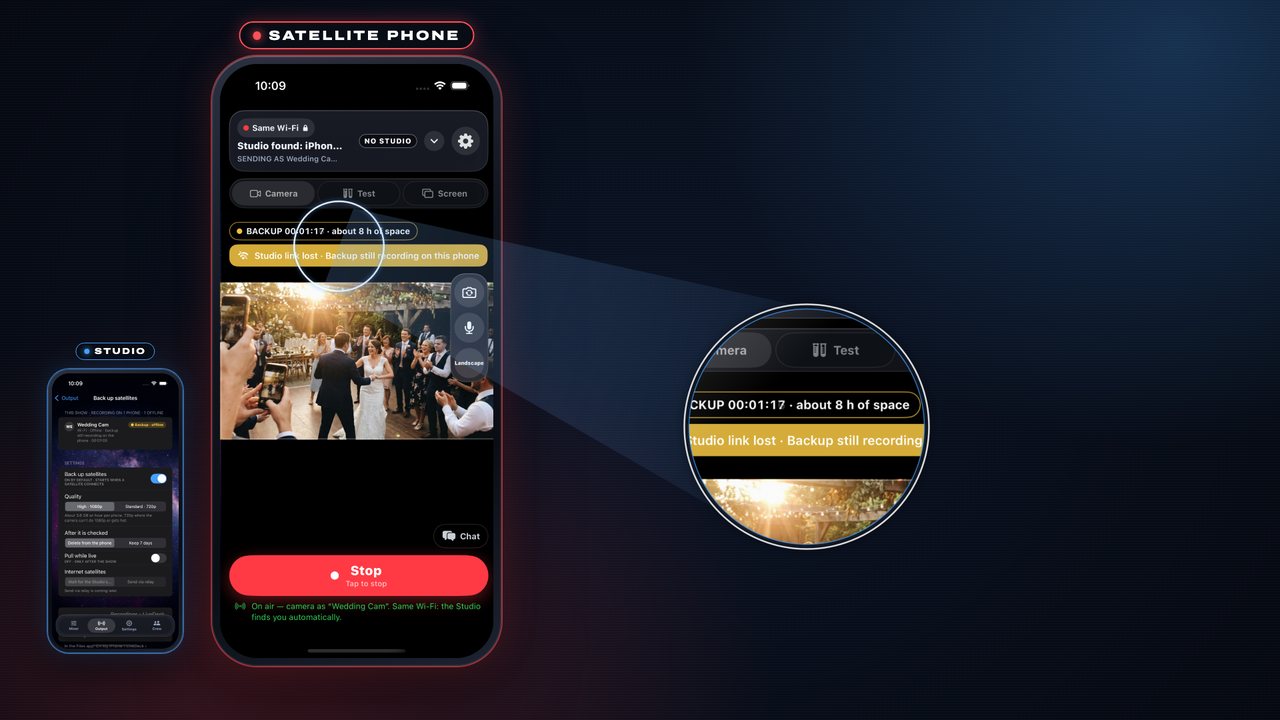
- If the link to the Studio drops, the phone keeps recording: Studio link lost · Backup still recording on this phone. The Studio shows it offline, backup still recording on the phone.
- When the link is back: Back with the Studio · your backup never stopped. It is still one recording.
AndroidThe same banners; the Studio marks the phone Offline.
 Step 5 of 7
END the show
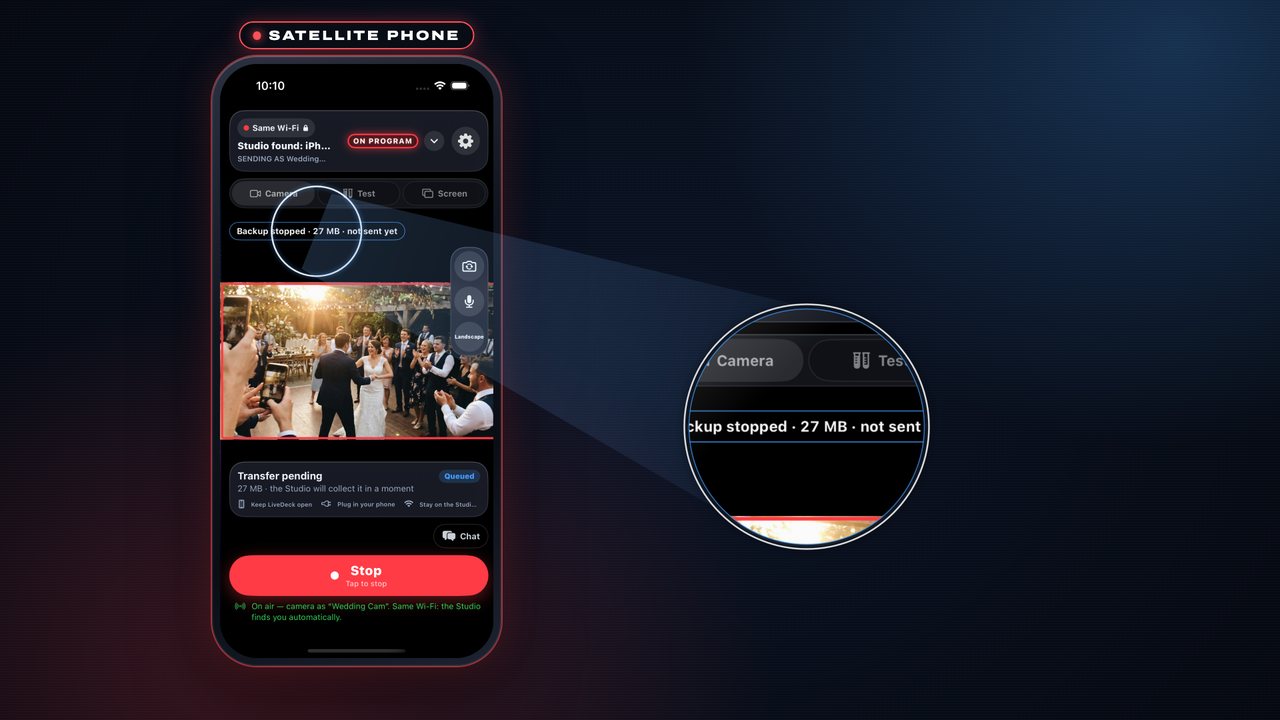
- Tap the live button (Tap to stop), then Stop in “Stop going live?”. Every satellite’s backup stops.
- The phone shows Backup stopped · not sent yet and a Transfer pending card: keep LiveDeck open, plug the phone in and stay on the Studio’s Wi‑Fi.
AndroidThe same: Stop going live? → Stop.
 Step 6 of 7
The Studio collects it
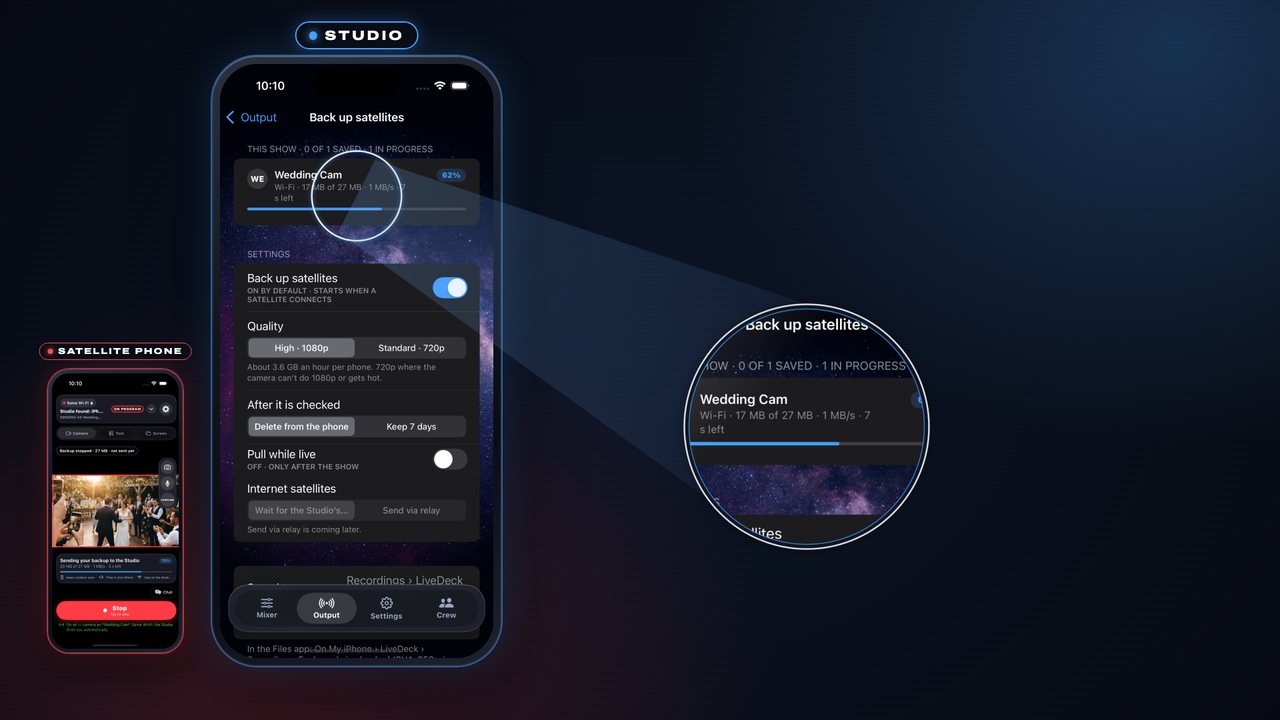
- After the show the Studio pulls each phone’s file over the Wi‑Fi, one phone at a time, with progress, speed and time left. A dropped connection resumes where it stopped.
- Each file is checked (SHA-256, size and length) before the phone deletes its copy: the Studio shows ✓ Saved and the phone Backup safe on the Studio.
AndroidThe same; an Android Studio collects from iPhone satellites and the other way round.
 Step 7 of 7
Where the files land
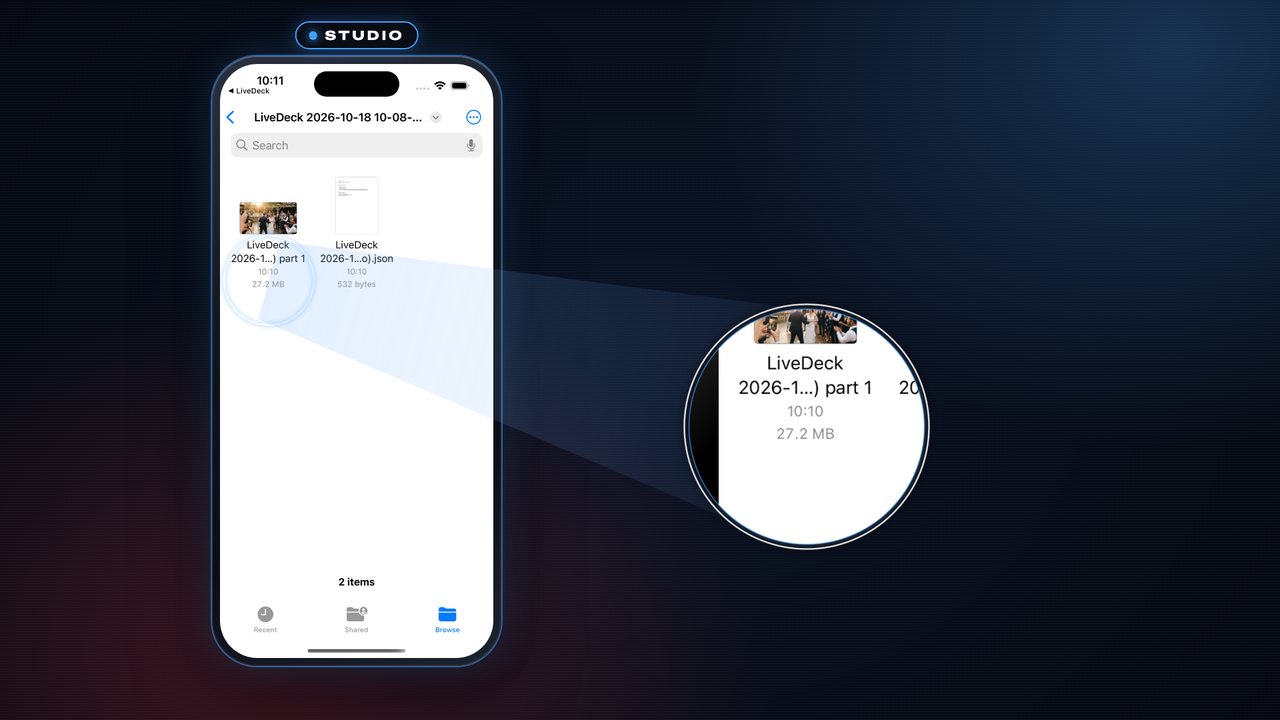
- Saved to Recordings › the show’s folder, next to the Program recording (and copied to your network drive if one is set).
- Show in Files opens the folder (On My iPhone › LiveDeck › Recordings): one file per phone, plus a small .json with its timing.
AndroidMovies › NDIStudio › the show’s folder; Show in Files opens your videos.