LiveDeck · Tutorial 3 · 1:33
Skin buttons — and layout skins vs Program skins
Turn any skin into a button you tap to put it on air — a lower third, say — and learn the difference between a skin that belongs to one layout and a skin that stays on over every layout. Shown on iPhone; Android differences are noted under every step.
- LiveDeck on iPad, iPhone or Android
- At least two layouts
- About 2 minutes
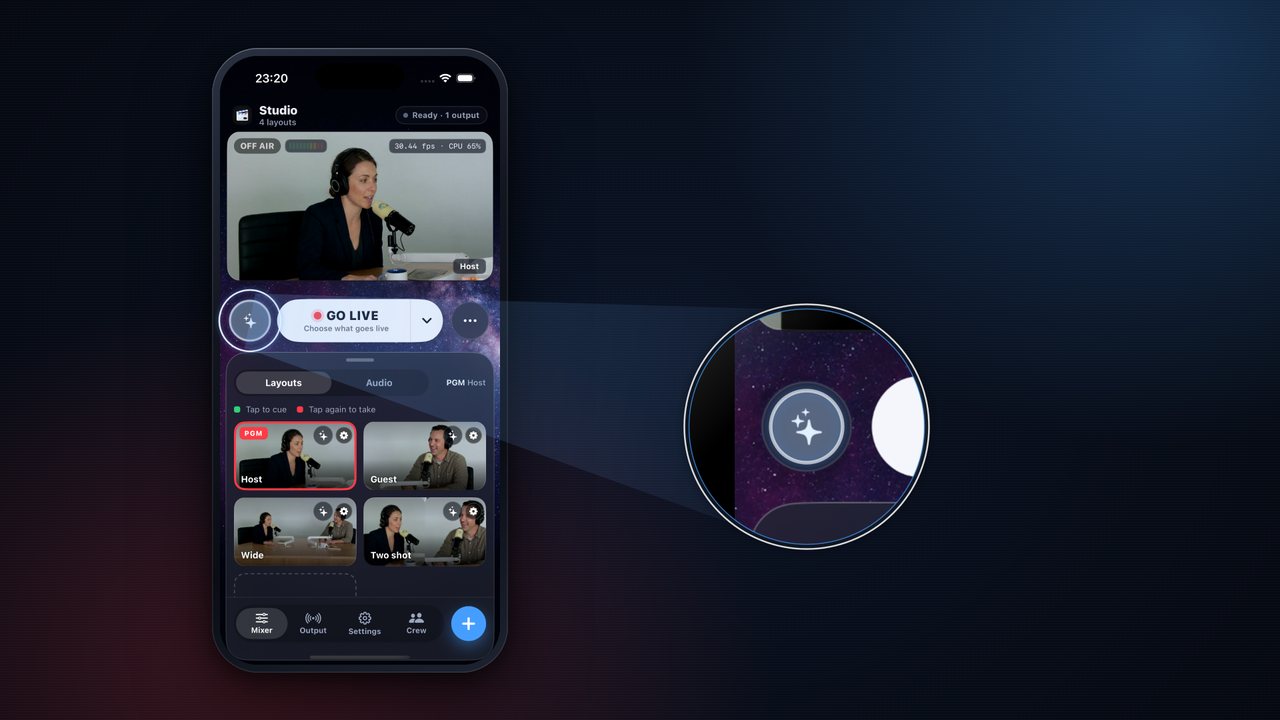 Step 1 of 7
Add a skin to Program
- Tap ✨ next to GO LIVE (Program skins). With no skins yet, it opens straight on Add a skin.
- Pick New → Lower third. The lower third is added and its editor opens.
AndroidThe same ✨ next to GO LIVE, then Add a skin → New → Lower third.
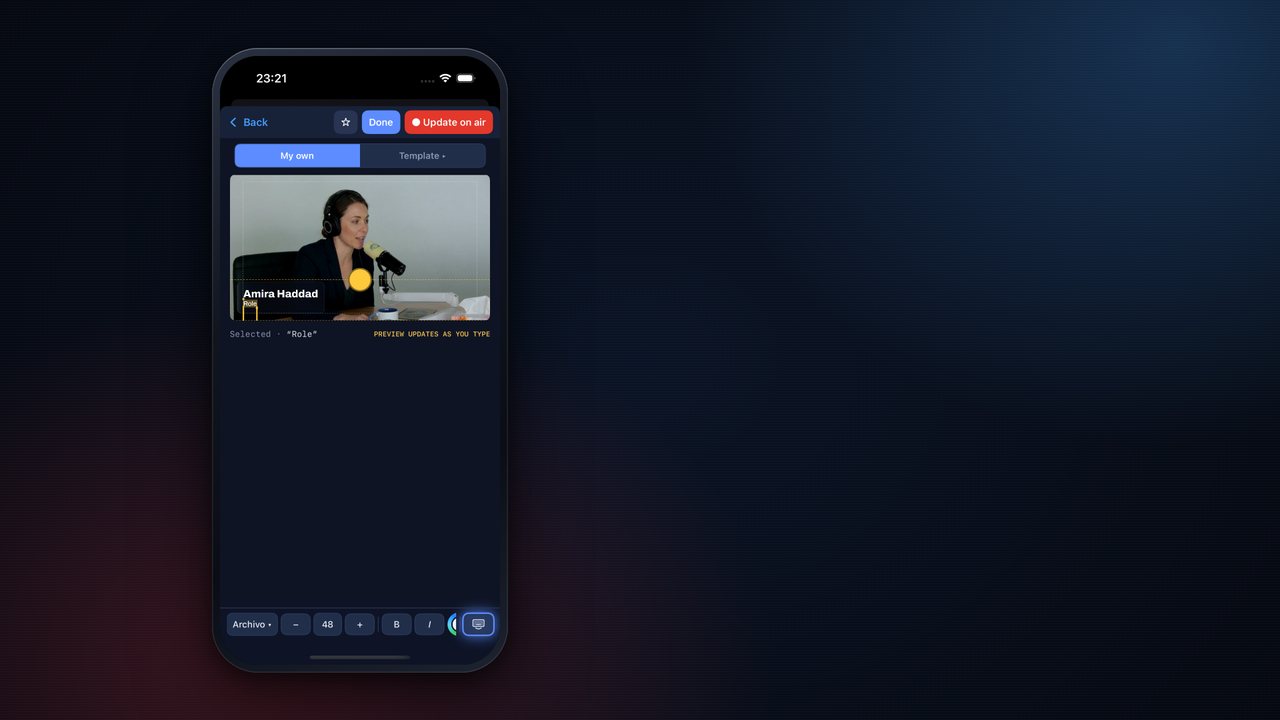 Step 2 of 7
Type the name
- Tap the words on the card and type over them: the name on the first line, the role on the second.
AndroidThe same card editor.
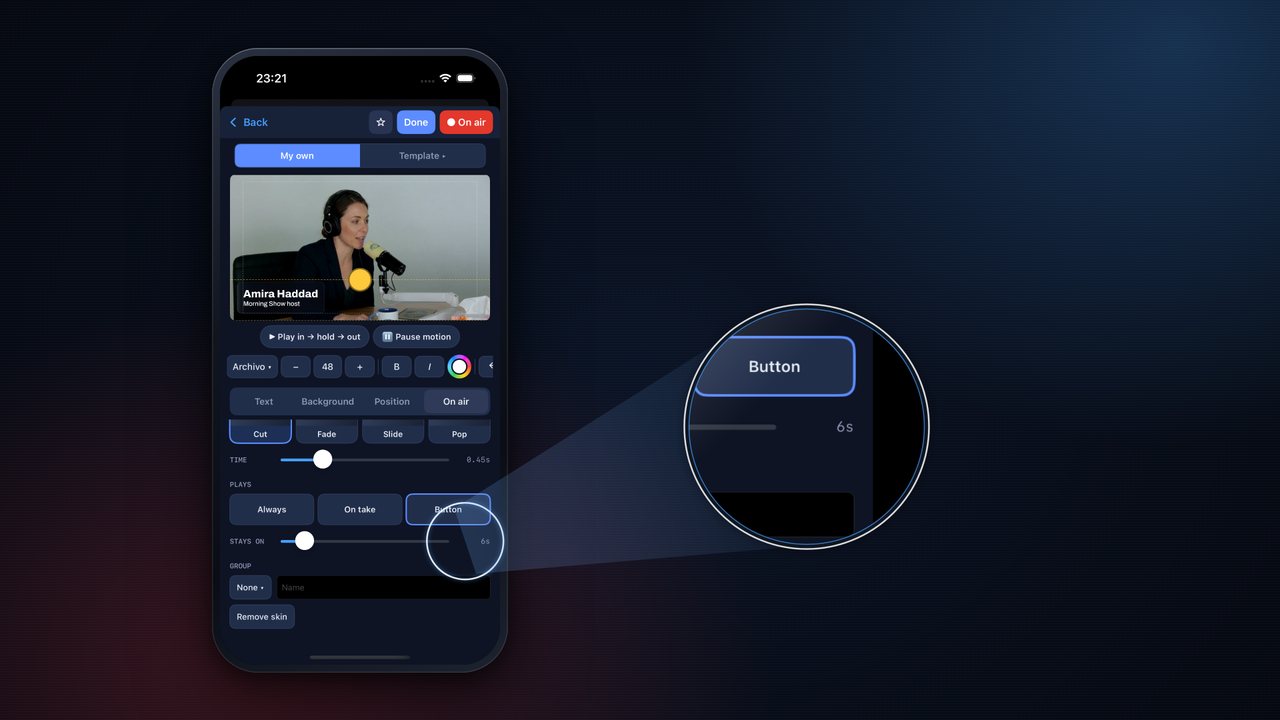 Step 3 of 7
Plays: Button
- Open the On air tab. Under Plays choose Button (the others are Always and On take).
- Stays on sets how long it stays on air after a tap — here 6 s. At 0 it stays until you tap it again.
- Tap Done. The list now shows it under ▶ SKIN BUTTONS UNDER PROGRAM; tap Done again.
AndroidOn air → Plays → Button, and Stays on, the same.
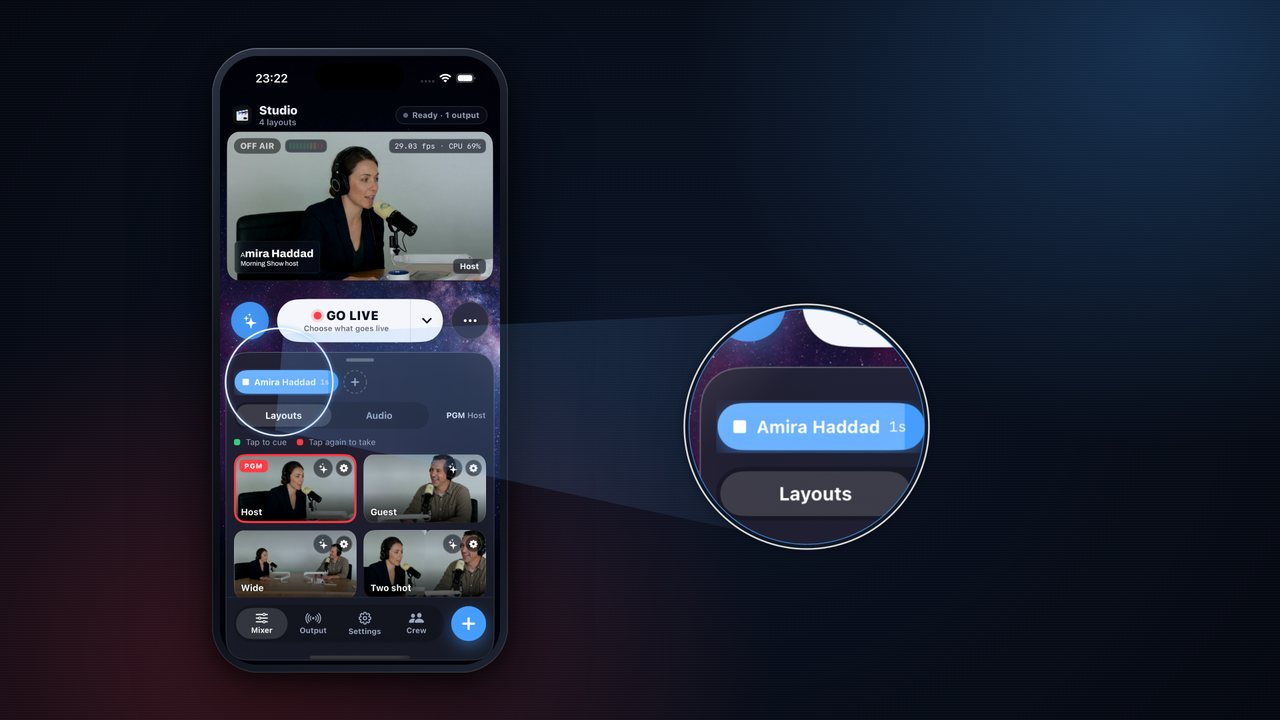 Step 4 of 7
Tap to put it on air
- A ▶ button with the skin’s name appears in the skin-button row: on iPhone it sits just under GO LIVE, at the top of the Layouts panel (on iPad in landscape: above the Layouts).
- Tap it: the lower third comes in, the button turns blue and counts down, and the skin goes off by itself when the time is up. Tap it while it is on to take it off early.
- Shortcut: in the Skins list, the 📌 next to a skin turns it into a button too.
AndroidThe same ▶ skin-button row and 📌 in the Skins list.
 Step 5 of 7
A Program skin that stays
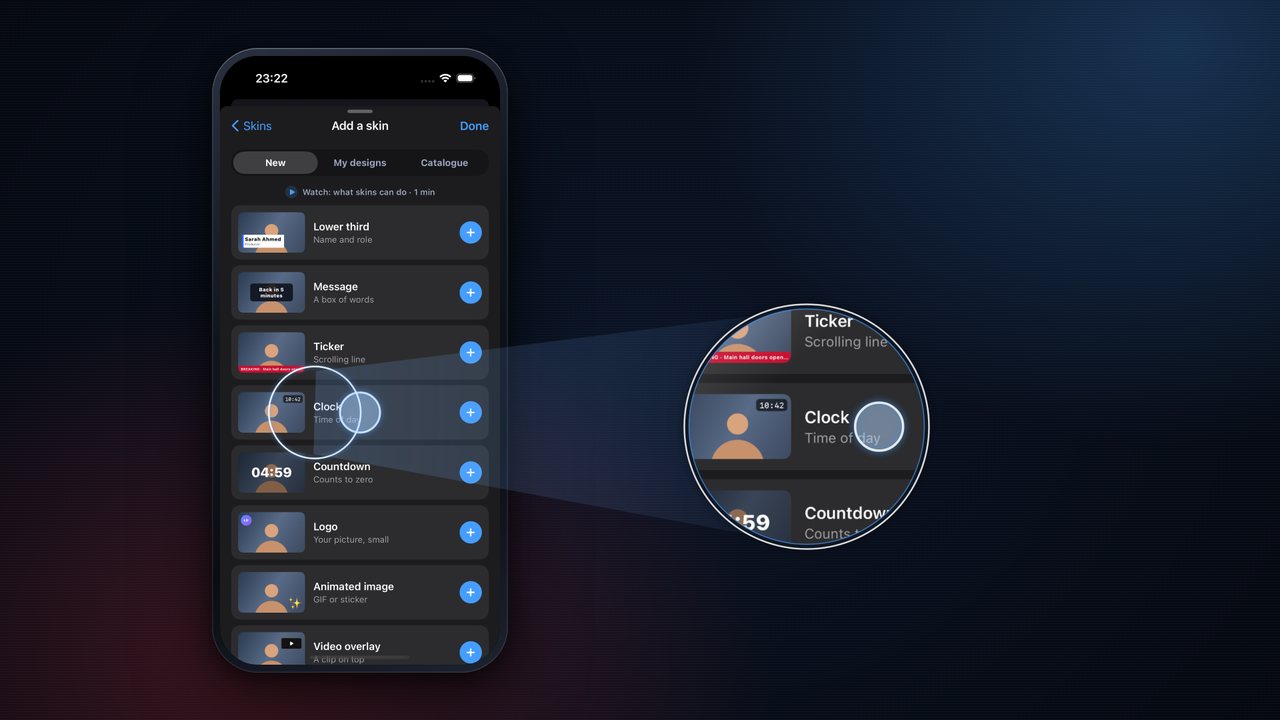
- Add a Clock the same way: ✨ → Add a skin → New → Clock → Done. On iPhone, drag the Add a skin sheet up to see Clock.
- A new clock Plays Always, so it needs no button — it is simply on.
Android✨ → Add a skin → New → Clock, the same.
 Step 6 of 7
A layout skin
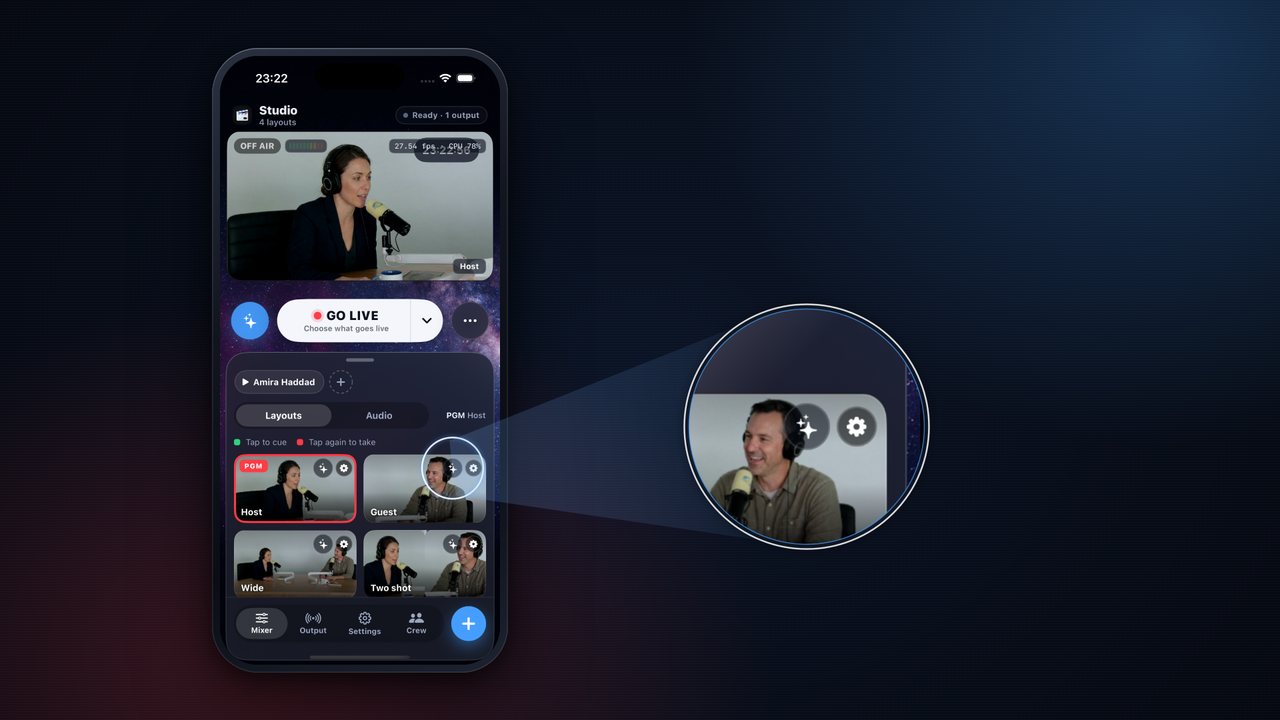
- Every layout tile has its own small ✨ (top-right of the tile, next to the ⚙). It opens Skins — Guest: skins for that layout only.
- Add a Ticker, type its text and tap Done twice. The tile’s ✨ turns blue: this layout has skins.
AndroidThe ✨ on the tile opens “Skins on Guest”.
 Step 7 of 7
Switch layouts — see the difference
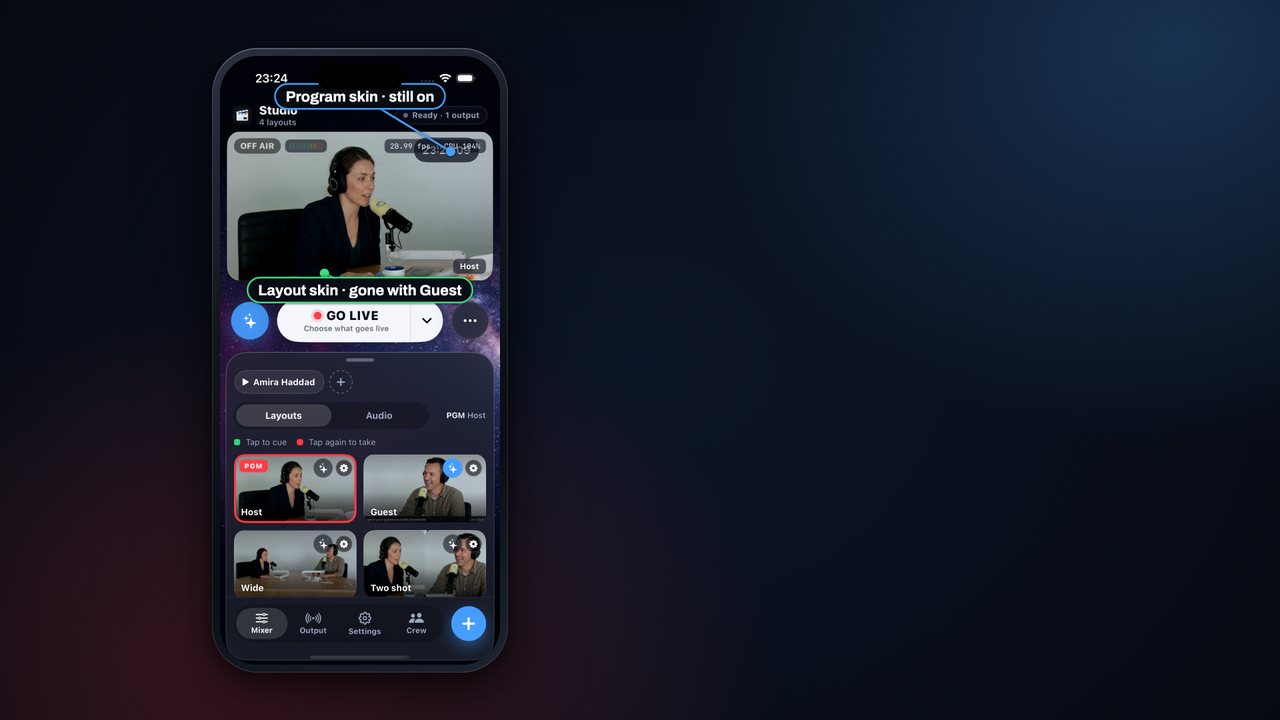
- Tap Guest to cue it, tap again to take it: its ticker comes on with it, and the clock is still there.
- Take Host again: the ticker leaves with Guest; the clock stays.
- A layout skin is on air only while its layout is live. A Program skin stays on over every layout. A layout’s button skins follow the same rule: their ▶ shows only while that layout is on air.
AndroidThe same rule.